
Imaging analysis tools are built-into FlowJo v11.
TIFF Extraction
The BD FACSChorus software stores compressed images in Compressed Waveform Files (.CVW). By default, when a file from a FACSDiscover instrument is loaded into FlowJo v11, the TIFF files will be automatically extracted into a folder with the same name as your FCS file, in the same place as the FCS file. This is a one-time action, assuming you keep the images. If you do not want this to happen, there are Imaging preferences that you use to turn it off.
Imaging Components
Figure 1 displays the primary components of imaging analysis in Version 11. The image wall can be selected as an option from the graph gallery drop down, and the appearance of the images can be controlled from the Image properties panel
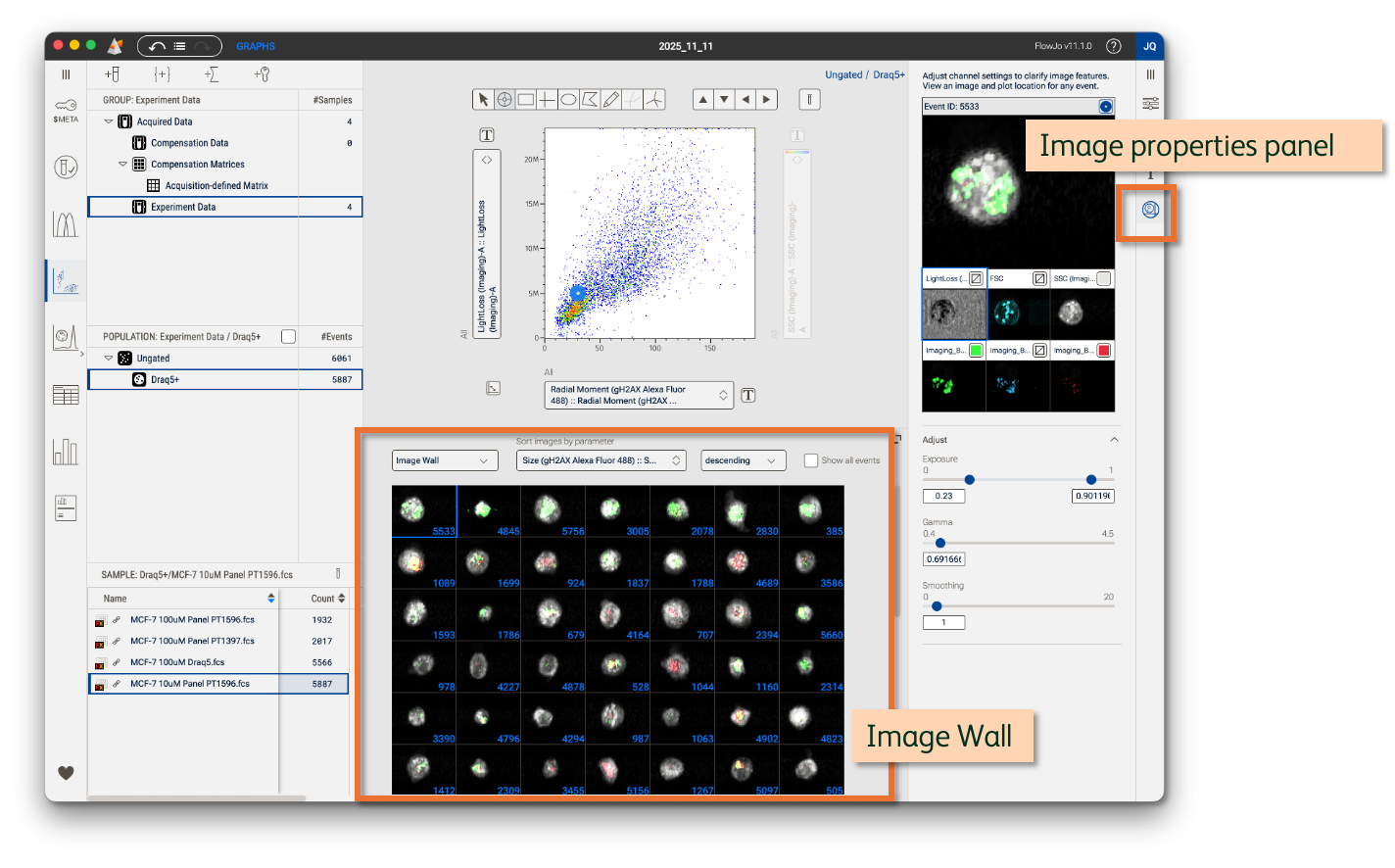
Figure 1 Image components
Image wall controls
Figure 2 shows the controls for the Image wall.

Figure 2 Image wall controls
| Number | Function |
| 1 | Image Wall / Graph Gallery selector |
| 2 | Parameter selector for sorting control of images |
| 3 | Ascending / descending selector for sorting control |
| 4 | Show/hide all events. If checked on, will show empty boxes when events without images are present. |
Image properties panel
The properties panel displays the composite image of a selected event, and provides controls for modifying the filter settings for the individual parameters as shown in Figure 3. Clicking on one of the smaller images in the properties panel selects that parameter for editing. The sliders for exposure, gamma, and smoothing affect whichever parameter is selected.
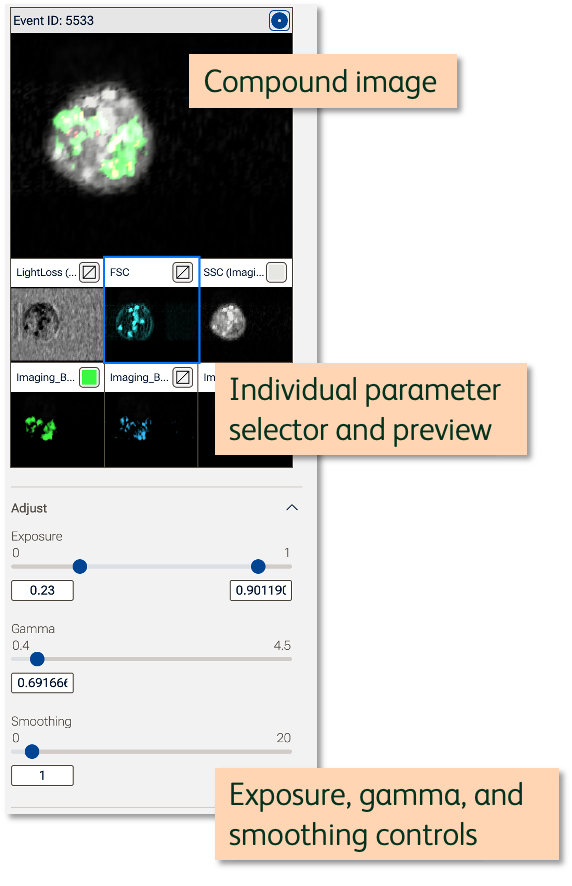
Figure 3 Image filter controls
Finally, the primary graph can be incorporated into image analysis through either the image picker or the seeker tool. If selected, as it is in Figure 4, the image picker will pop up the picture cells as moused over. The Seeker will show the location of the cell that is currently displayed in the composite image picture.
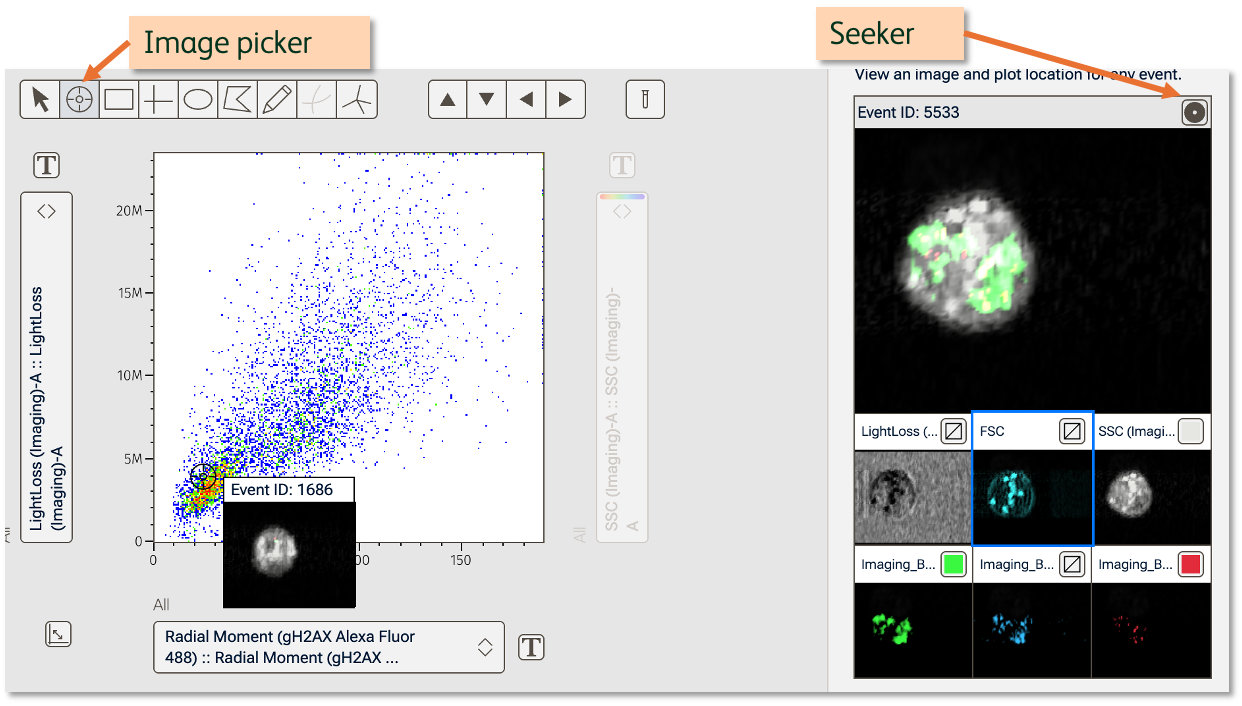
Figure 4 Image picker and seeker modes.