
Curate biologically interesting images and study them further as a population
During imaging analysis, you may notice and become interested in a characteristic visual pattern, but the pattern is hard to capture or correlate with available fluorescent or image-derived parameters. Image sets can be used to select images from the Image Wall in a straight-forward manner so they can be revisited quickly or investigated further as populations (Figure 1).
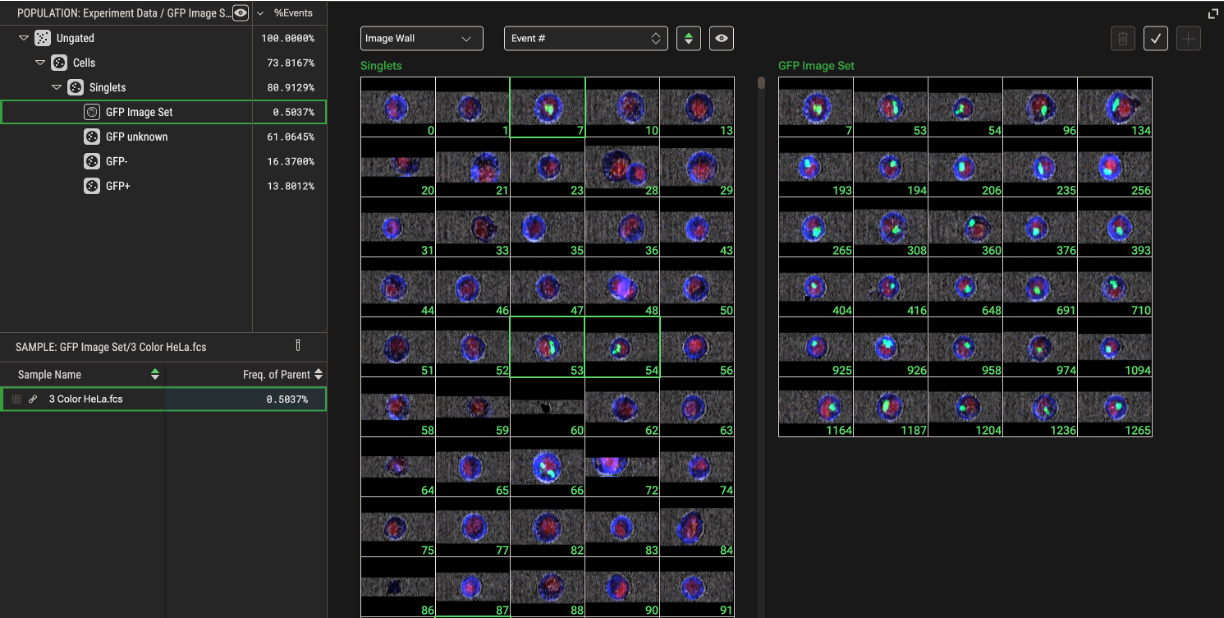
Figure 1. Image Set in Image Wall of Graphs context
Create an Image Set
In the Graphs context, select Image Wall from the Properties panel or from the dropdown menu in the Graph Gallery. Images within the gate selected from the Population pane will be displayed. Click the Create Image Set button on the top right of the Image Wall (Figure 2). This will open an editor view and create an Image Set population in the Population pane. Right-click the Image Set in the Population pane to rename it. Click an image on the left side of the Image Wall to add it to the Image Set being curated on the right side. Click the Save Image Set button when complete.
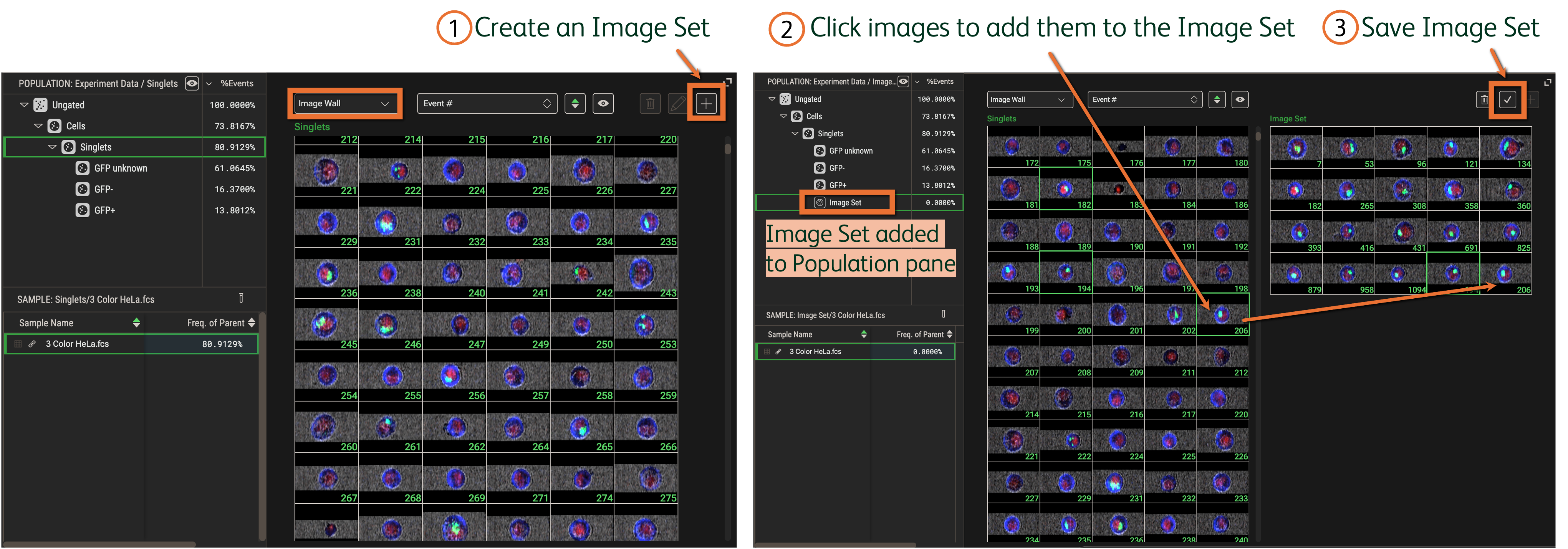
Figure 2. Create an Image Set
Edit an Image Set
With the Image Set selected, click the Edit Image Set button (pencil icon) to open the editor view and select more images to be added (Figure 3). Delete images from the set by selecting one or more images from the right side and clicking the Remove Selected Events button (trash icon). Click the Save Image Set button when complete.
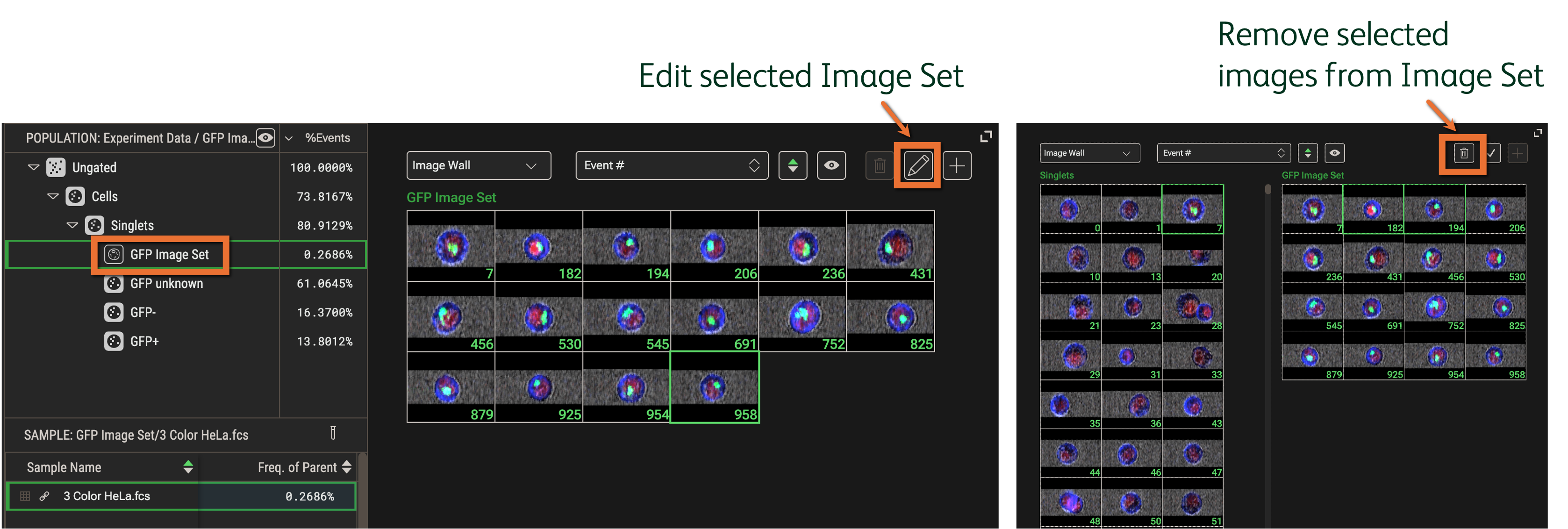
Figure 3. Edit an Image Set
Investigate an Image Set-derived population
Though an Image Set is created by selecting images, these images correspond to cells or events. As such, an Image Set is also a gated population in the Population pane. This Image Set-gated population can be copied to other population nodes in the hierarchy and phenotyped with biaxial plots (as in Figure 4), HD analysis, or Cluster Explorer.
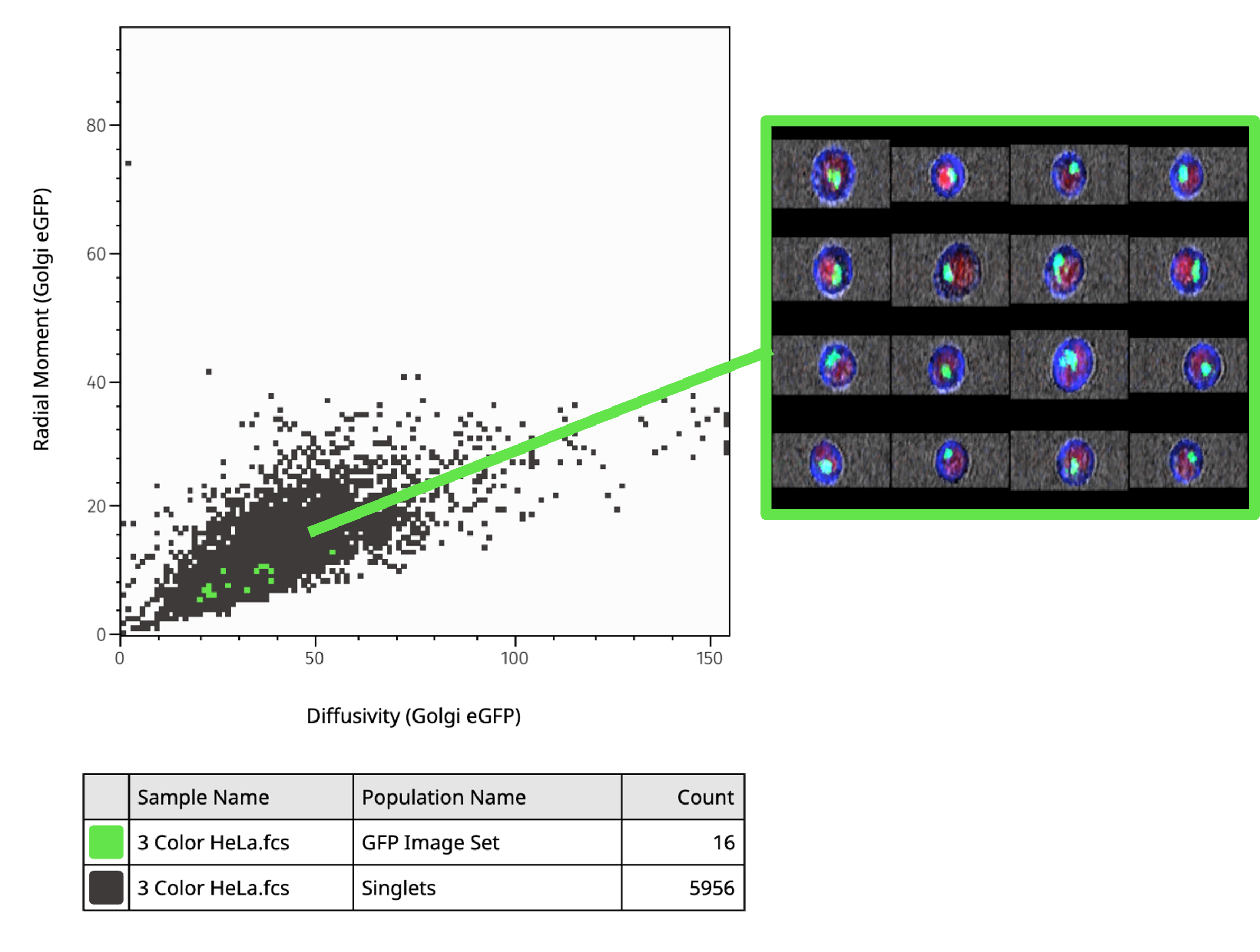
Figure 4. Image Set-derived population overlaid on parent population to visualize Diffusivity vs. Radial Moment of GFP signal. Image Set, copied from Image Wall gallery, shown to the right.