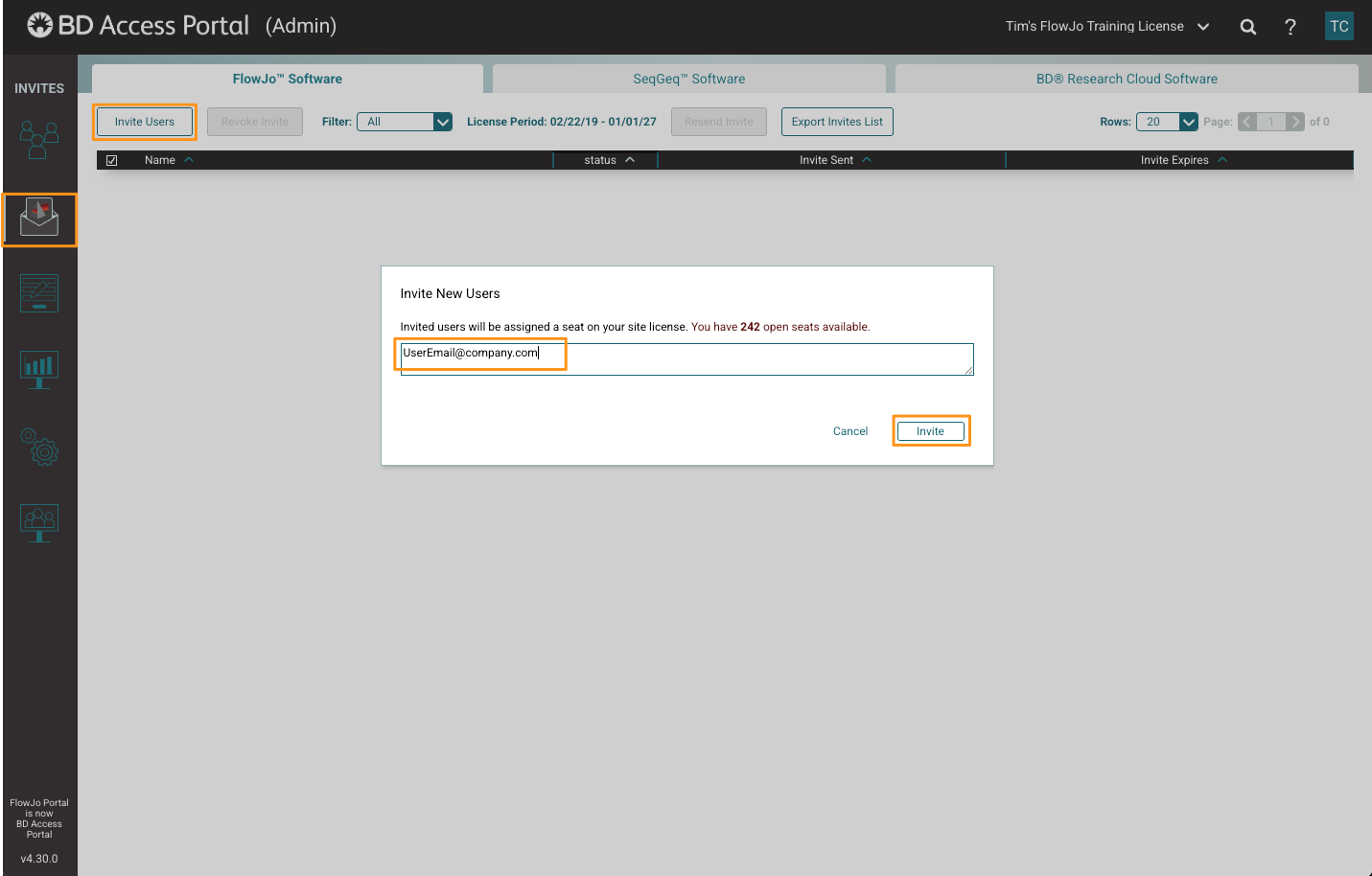
Invited users will receive an email from no-reply@flowjo.com. We recommend having your IT group whitelist this email address, so that the recipients can receive emails from this sender.
2. Accepting the Invitation to Join
Within the Invitation email, the user will be prompted to click on a button top accept the invitation, which will redirect them to the BD Access Portal website and either:
1) Take them to the create-BD Access Portal account page where they will enter the necessary user information to create a new account. Details on How to Create a BD Access Portal account here.
Or, 2) Prompt them to log into their BD Access Portal account (if an account already exists for their email).
Once an account exists for their Email address, the user will need to log into their account on the BD Access Portal website and accept the group license invite via a pop-up banner on the top right corner of their BD Access Portal account home page.
Once the user has clicked on the acceptance link in the banner, they will have an Active seat on the user on the BD Access Portal group license.
With an Active seat on the group license, the can login to the licensed software with their BD Access Portal username/password.
3. Revoke Invite
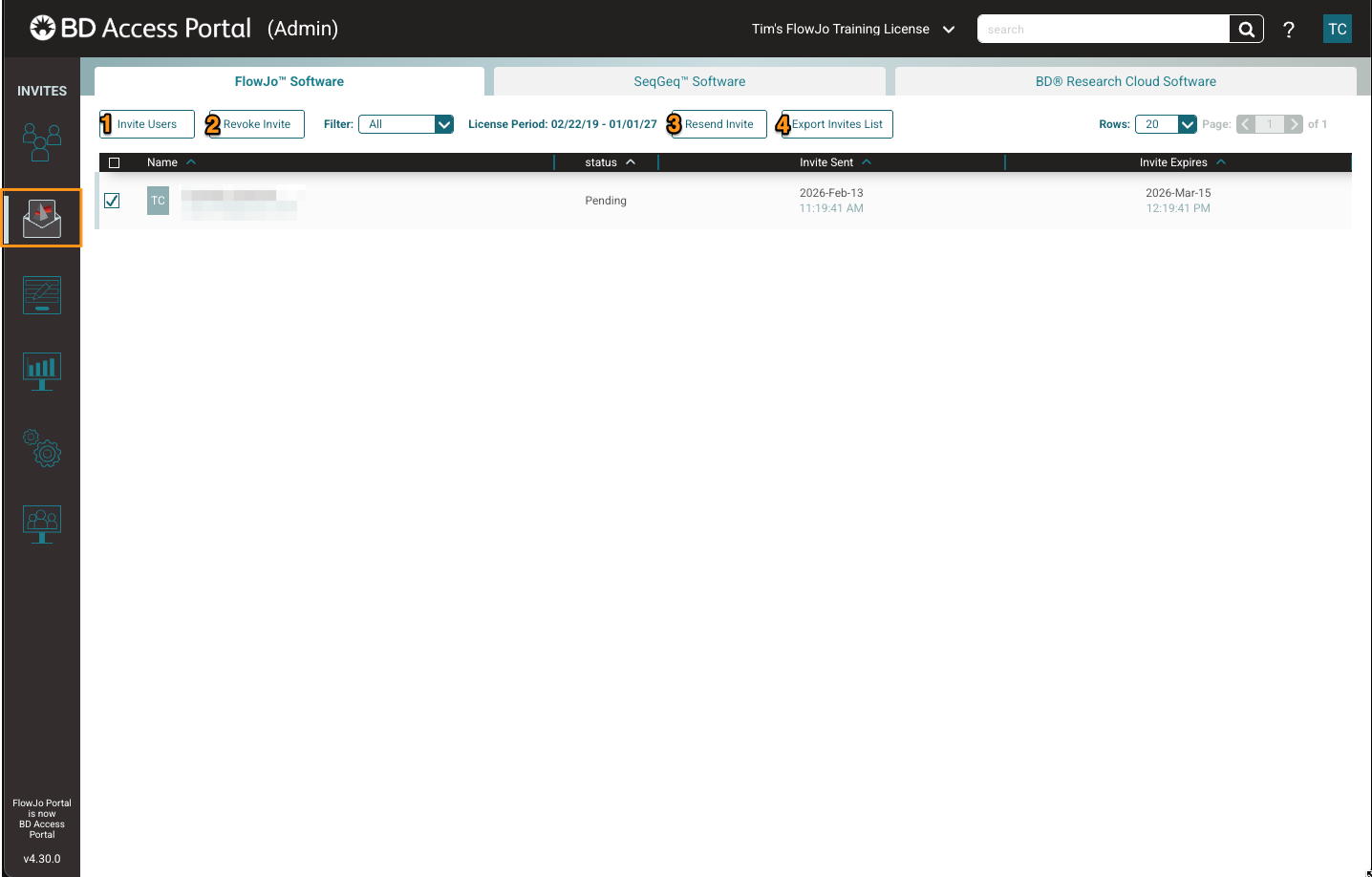
Admins can revoke an invitation by checking the box on the user’s account and then clicking the Revoke Invite button. This will remove the invitation from the Invite User’s page and the invitation email that the user receives will be invalid if they try to use the invitation to join the group license.
4. Resend Invite
Invites expire after 30 days. If the invite has expired, the user’s invitation email to join the group license will be invalid and they won’t be able to join the group license through the expired invite email.
Admins can resend and invite by checking the box on the user’s account and then clicking the Resend Invite button. This will resend the invite if the invite has expired and refresh the 30-day invitation period.
*If a user has not received their invite and you have confirmed that they have a valid email address, have the user check their spam or junk folders. If the invite from no-reply@flowjo.com cannot be located in the user’s inbox or spam/junk folders, please contact james.kidwell@bd.com, so we can check out email sender’s bounce list.
5. Export Invites List
Admins can export all the date in the Invite User’s table by clicking on the Export Invites List button on the Invite User’s page. The data will export as a CSV file including the following relevant information:
- Name – First name and last name of the user (not populated if the user still needs to create their account, which they do through the invite.)
- Email Address: user's email address
- Invite Sent: Date that the invite was sent
- Invite Expires: Date that the invite expires
- Invite Status: Pending or Expired