
Support Contacts:
- BD Access Portal techincal support: FlowJo@bd.com
- BD Regional Support Contacts: https://www.bdbiosciences.com/
FlowJo™ Software
- FlowJo™ Software license and sales support: flowjoaccountservices@bd.com
- FlowJo™ Software techincal support: FlowJo@bd.com
Infinicyt™ Software
- Infinicyt™ Software license and sales support: Infinicyt@bd.com
- Infinicyt™ Software technical support: https://www.bdbiosciences.com/support
- US Region: ResearchApplications@bd.com
- Non-US regions: Support.Cytognos@bd.com
FAQs
Trouble Logging into FlowJo™ v11 or Infinicyt™?
Check out the Q&As below to find a solution.
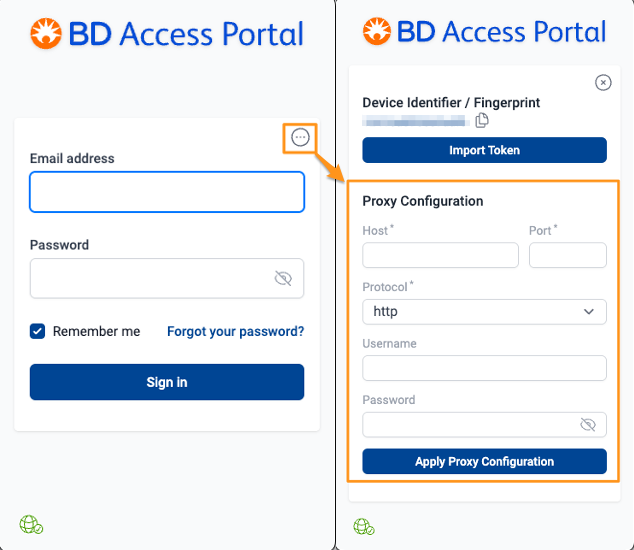
Q. My institution employs a Proxy Server to manage application network traffic. Can I use FlowJo™ 11 and/or Infinicyt™ Software?
A. Yes, BD Access Portal v2.3.0 and later have Proxy support. Please Update to the latest version of FlowJo™ v11 or Infinicyt™ v3.0 Software and BD Access Portal: https://www.flowjo.com/flowjo/download
More information on Proxy setup here: https://flowjo.com/docs/flowjo11/license-info/proxy-setup
Q. What is the URL that needs to be unblocked by my IT department to use FlowJo™ v11 and/or Infinicyt™ Software?
A. The authentication server URL for BD Access Portal is https://bdaccessportal.com/
FlowJo™ v11 and Infinicyt™ Software communicate with the BD Access Portal application via a local websocket, localhost:16964, on the user's computer, also known as 127.0.0.1. The Client then reaches outside of their local network to bdaccessportal.com over port 443, the standard https port.
Q. My company uses MS Intune to distribute software. Do you have an MSI installer available?
A. We do not have an MSI installer available.
The individual FlowJo v11 and BD Access Portal installers have silent install options when run from the command line that Intune can use. Standalone installers and instructions for running these installers headless can be found here.
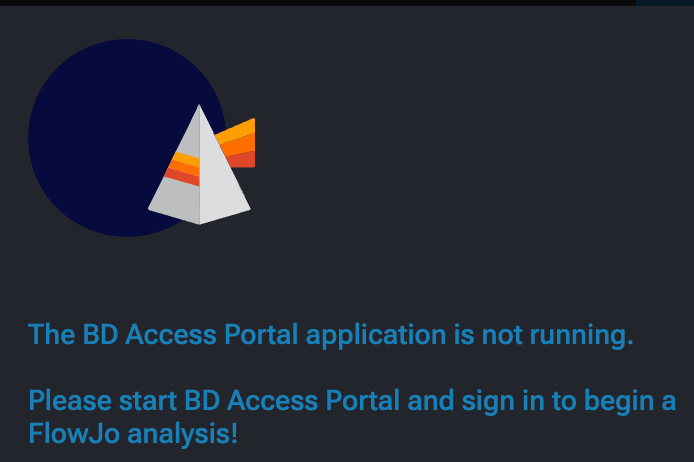
Q. FlowJo™ v11 or Infinicyt™ Software present a message that the BD Access Portal application is not running. What do I do?
As seen in FlowJo™ v11
As seen in Infinicyt™
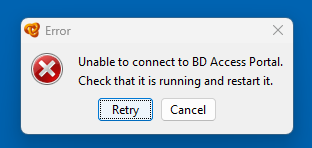
A. FlowJo™ v11 and Infinicyt™ require the BD Access Portal application to be running in order to log in and authenticate software usage.
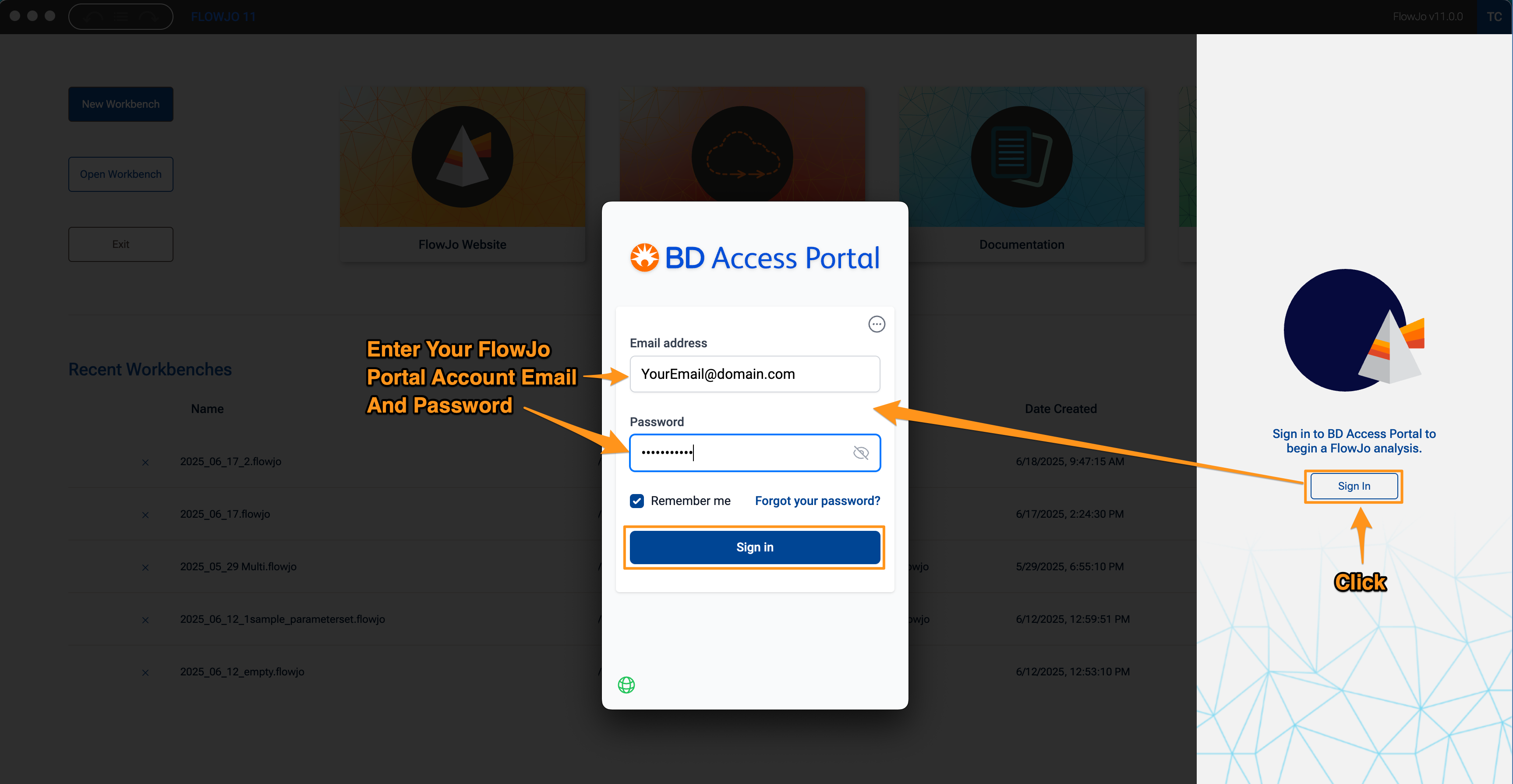
BD Access Portal is a separate application that is included as part of the software installer and installation process. Please launch the BD Access Portal application and sign in, then retry launching the software.
When FlowJo™ v11 opens, it should display a “Sign In” button. Click this button and enter your credentials in the Sign In window to authenticate, then select Sign In.
Q. Where can I find and launch BD Access Portal?
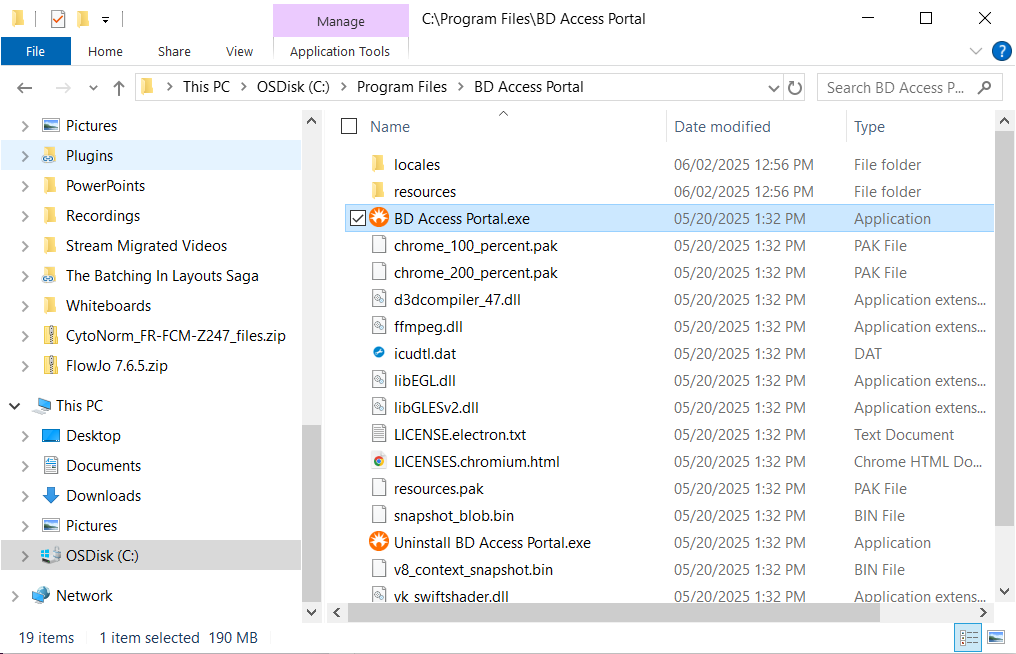
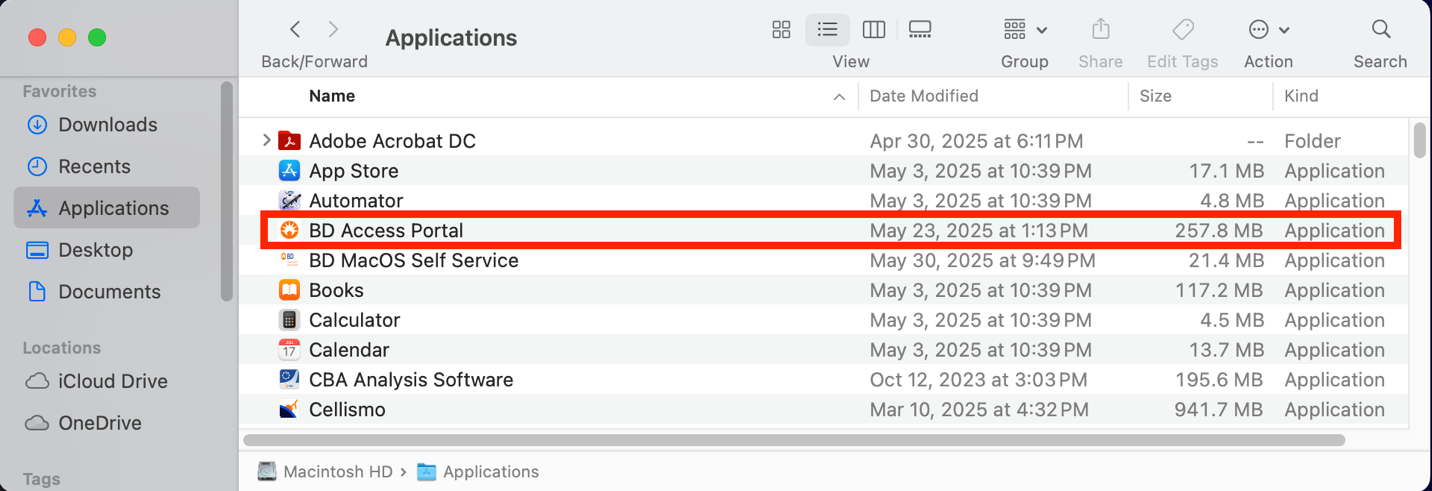
A. If the BD Access Portal application is not open, you can search for the app by name to open/launch it. Alternatively, you can open the application manually by launching it from your “Program Files” (Windows) or “Applications” (Mac).
BD Access Portal on the Windows OS:
BD Access Portal on the Mac OS:
Q. How do I install BD Access Portal?
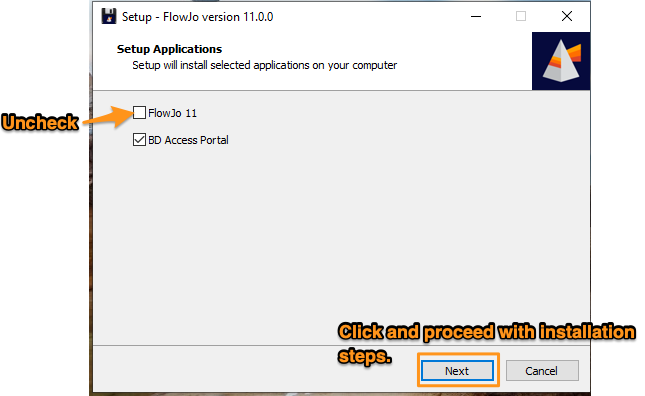
A. The BD Access Portal application is included in the FlowJo™ v11 and Infinicyt™ v3.0 Software installers and must be installed and running to license software use. If BD Access Portal was/is not installed, you can run the software installer again and install only the BD Access Portal application, if necessary.
How to install BD Access Portal without FlowJo™ 11 on Windows PCs. Screenshot for reference:
Q. BD Access Portal is running, but the BD Access Portal login window says I have Invalid Credentials when my Portal login information is entered.
A. The Invalid Credentials error may indicate that the BD Access Portal application cannot reach the license authentication server at https://bdaccessportal.com/. Please examine the color of the globe icon in the bottom left corner of the BD Access Portal login window. If the globe icon in is Red, there is some institutional or company network IT security blocking the application. Your IT security group may need to whitelist https://bdaccessportal.com/ and/or provide an exception in their security software to allow the application to communicate with the server at this URL. If the globe icon is Green, then the application should able to reach the authentication server.
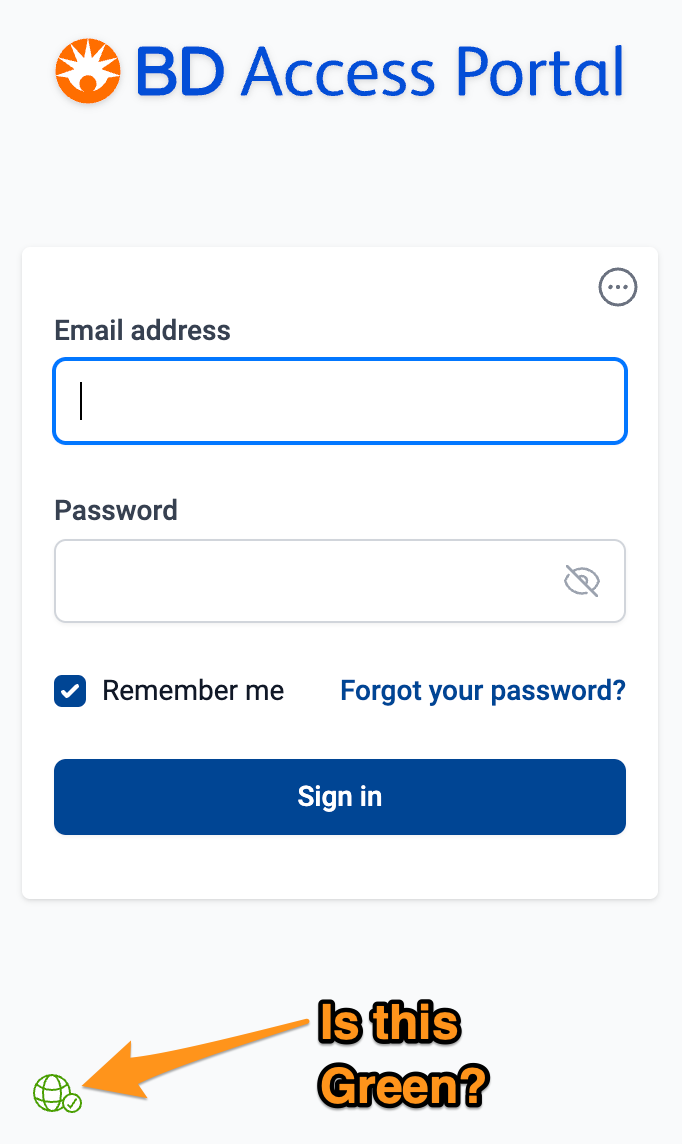
If the globe is green, and you have just created a new BD Access Portal account, then please make sure you have verified your email address by clicking the link in the verification email sent from no-reply@flowjo.com. The Invalid credentials error will be displayed in you have not verified your account email.
Q. BD Access Portal is running, but the login window displays a red warning message saying that the "Latest EULA not accepted. Click here to continue", and I cannot Sign in. How should I proceed?
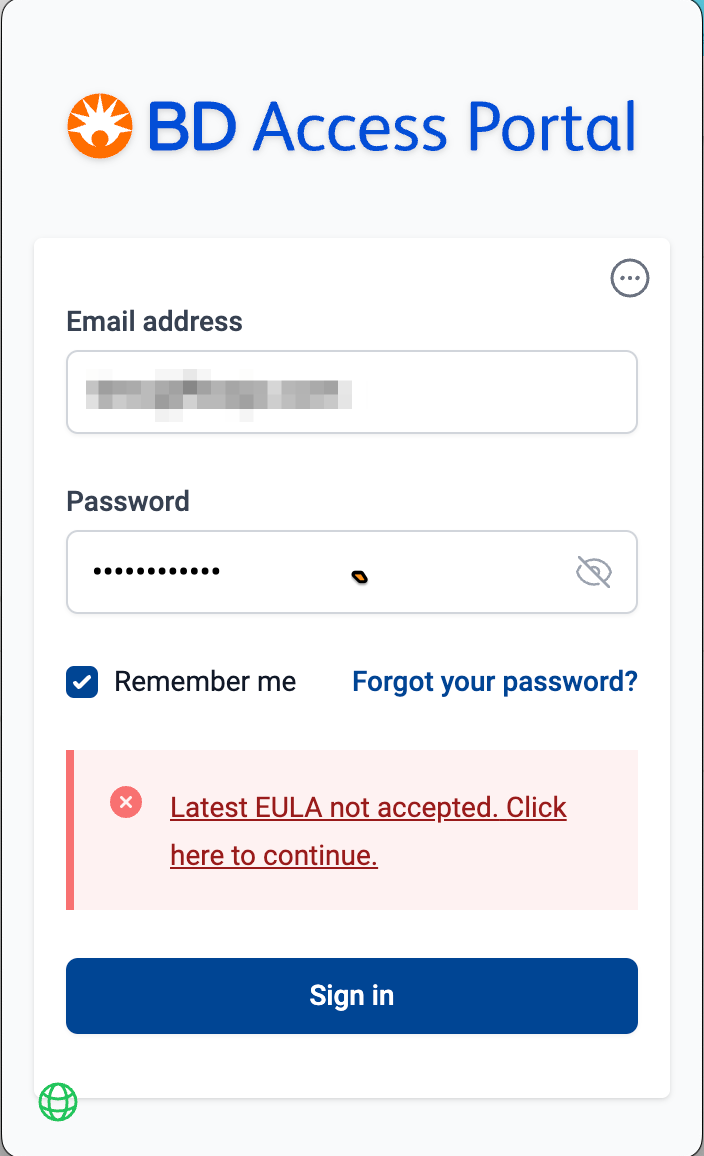
A. You need to accept the BD Access Portal End User Licensing Agreement (EULA) by logging into your BD Access Portal account at https://bdaccessportal.com/. Click the red message and the link will take you to https://bdaccessportal.com/. Log into your Portal account with your email and password, and the EULA will be presented. Once the EULA terms are accepted, return to the BD Access Portal application and sign in.
Q. BD Access Portal is running. I have successfully logged in previously and am using the Remember Me option, but FlowJo™ v11 only displays a Contact Support button. What should I do?
A. Your 24-hour Remember Me token has expired. To resolve, close and re-open open the FlowJo™ v11 application, which should then present you with a Sign In button. Alternatively, display the BD Access Portal login window manually and enter your credentials to Sign in. See the next question for information on how to display the BD Access Portal sign in window without clicking the Sign In button in FlowJo™ v11.
Q. How do I open BD Access Portal sign in window manually without clicking the Sign in button w/in FlowJo™ v11?
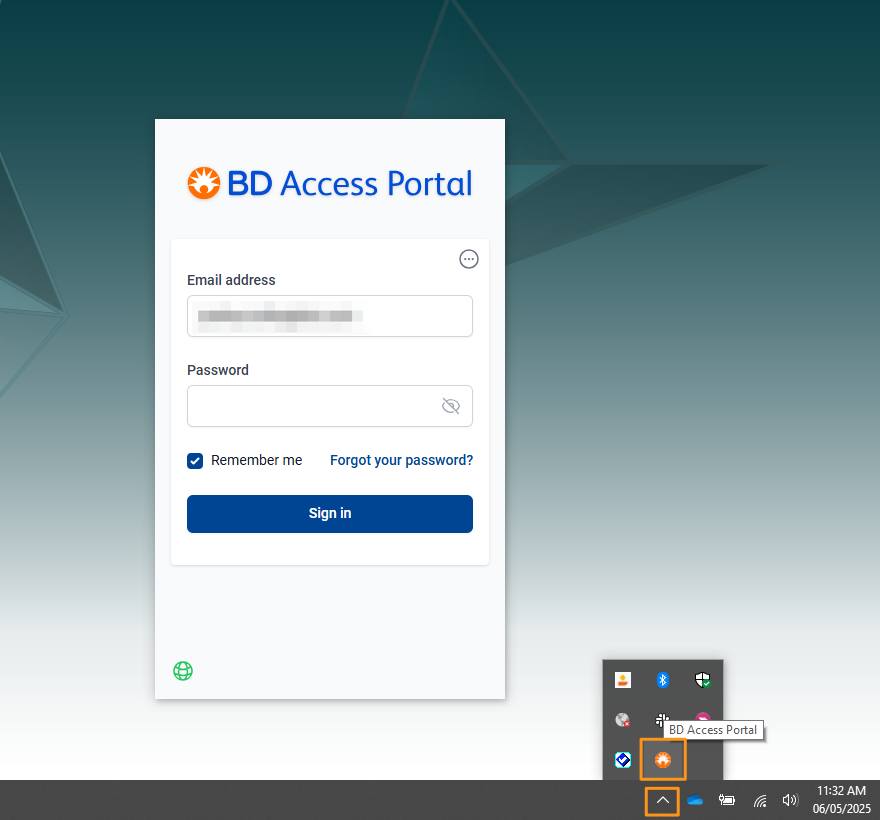
A. On Mac, the BD Access Portal icon will be displayed in the top right bar of your Mac OS, near where the wireless network and search shortcuts are located. Click this Icon to open the Sign in window.
On a Windows PC, the BD Access Portal icon will be found in the System Tray.
Q. How do I find my "computer fingerprint" in BD Access Portal?
A. Click on the three dots in the top righthand corner of BD Access Portal.
The 16 character computer fingerprint should be displayed at the top of the window. Those characters can be copied to your clipboard by pressing the icon to the right of the characters.