
Extended Offline Tokens (EOTs) allow BD Access Portal users to continue working while offline for extended periods. An EOT provides offline license access for a single device for up to 365 days or until the license expires, whichever occurs first. EOTs should be used only when a user requires access on a single device and expects to be offline for more than 24 hours.
Warning: Creating an Extended Offline Token (EOT) assigns your license exclusively to the chosen device for up to 365 days, or until the token expires. While the EOT is active, your BD Access Portal credentials cannot be used to log in on another computer. Because EOTs cannot be revoked or removed, verify that the correct device is selected prior to checkout.
Creating an Extended Offline Token
1) Locate your device identifier/fingerprint
Using the device that you intend to use offline, open BD Access Portal and locate the three dots in the top righthand corner. The "device identifier/fingerprint" should then be displayed.
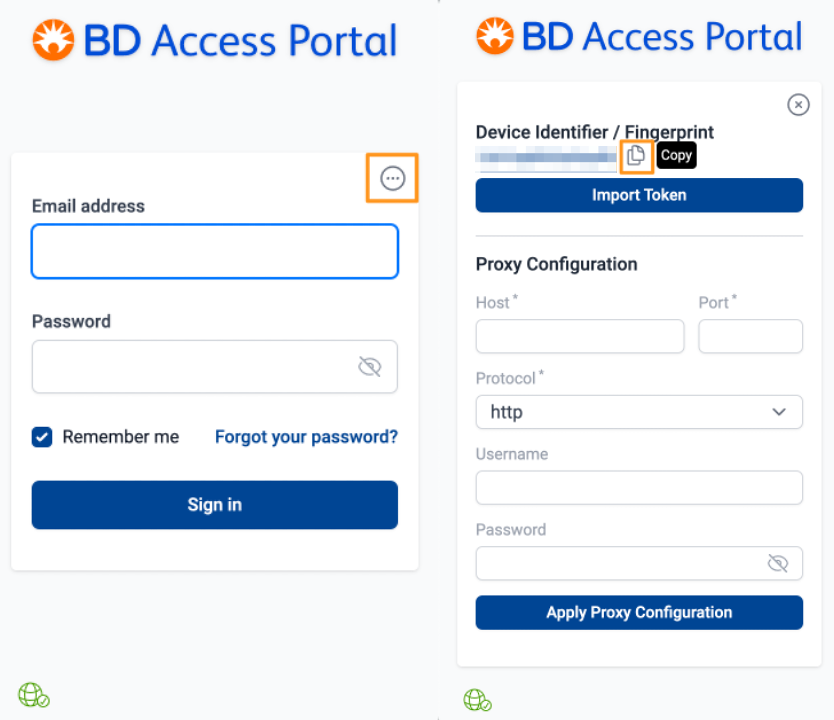
2) Locate the Device on the BD Access Portal webpage
Use your portal email address and password to login to the BD Access Portal webpage (https://bdaccessportal.com/). Select the "License" icon on the lefthand side bar of the webpage. Clicking on the "License" icon will open a pane that lists the licenses associated with the portal account. Select "Manage" in the "Devices:" section for the license that will be used offline.
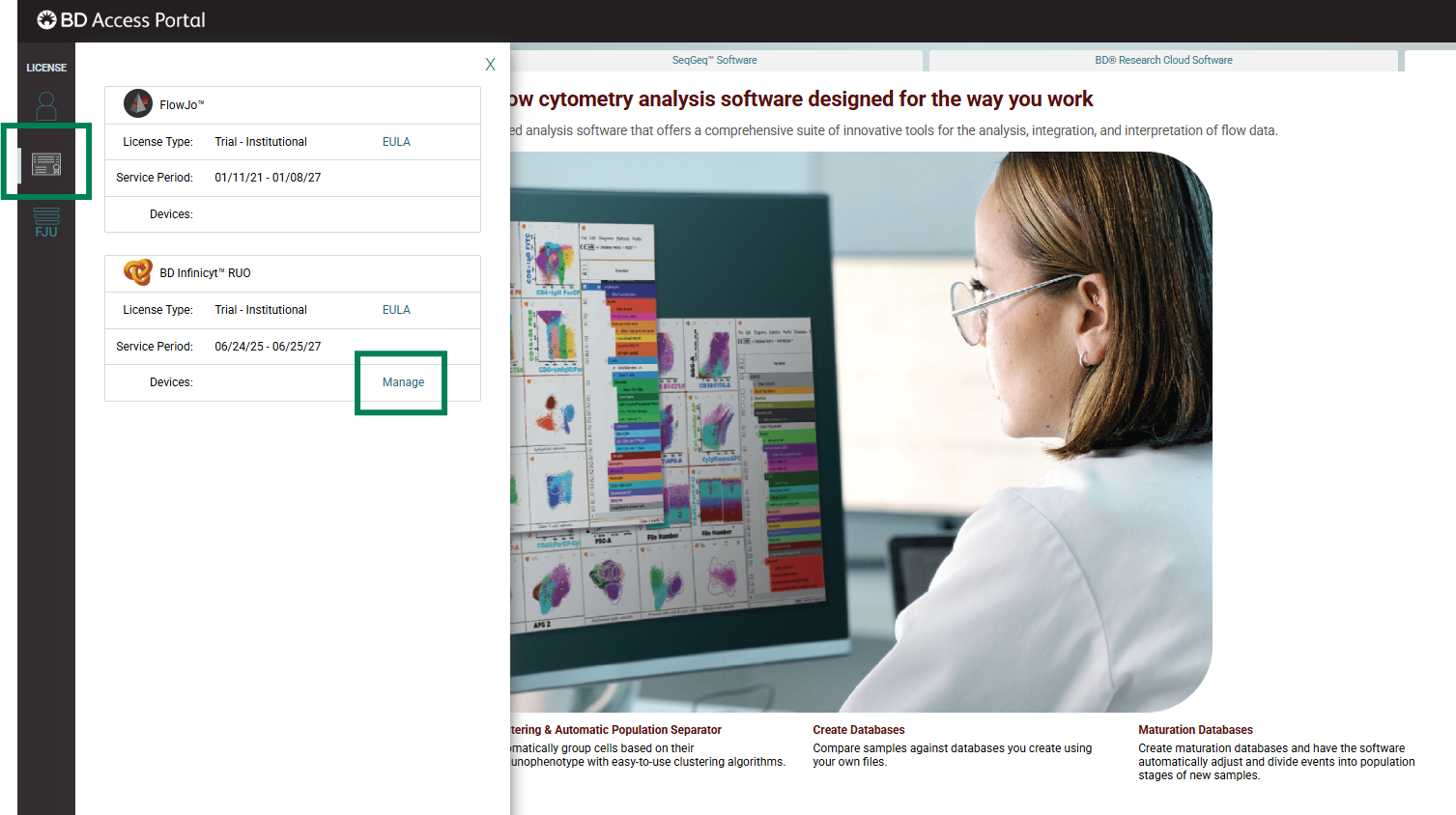
This will open a list of the devices that have been accessed using this BD Access Portal account. Locate the device ID that matches the Device Identifier shown in the BD Access Portal application. Press "Get Offline Token" for the matching device ID. This will open a window describing the limitations of the Extended Offline Token. Select "Create EOT" to generate an offline token for the selected device. Make sure you select the correct device! The offline token can only be used for the selected device and the BD Access Portal account can not be used to login to any other devices until the token expires.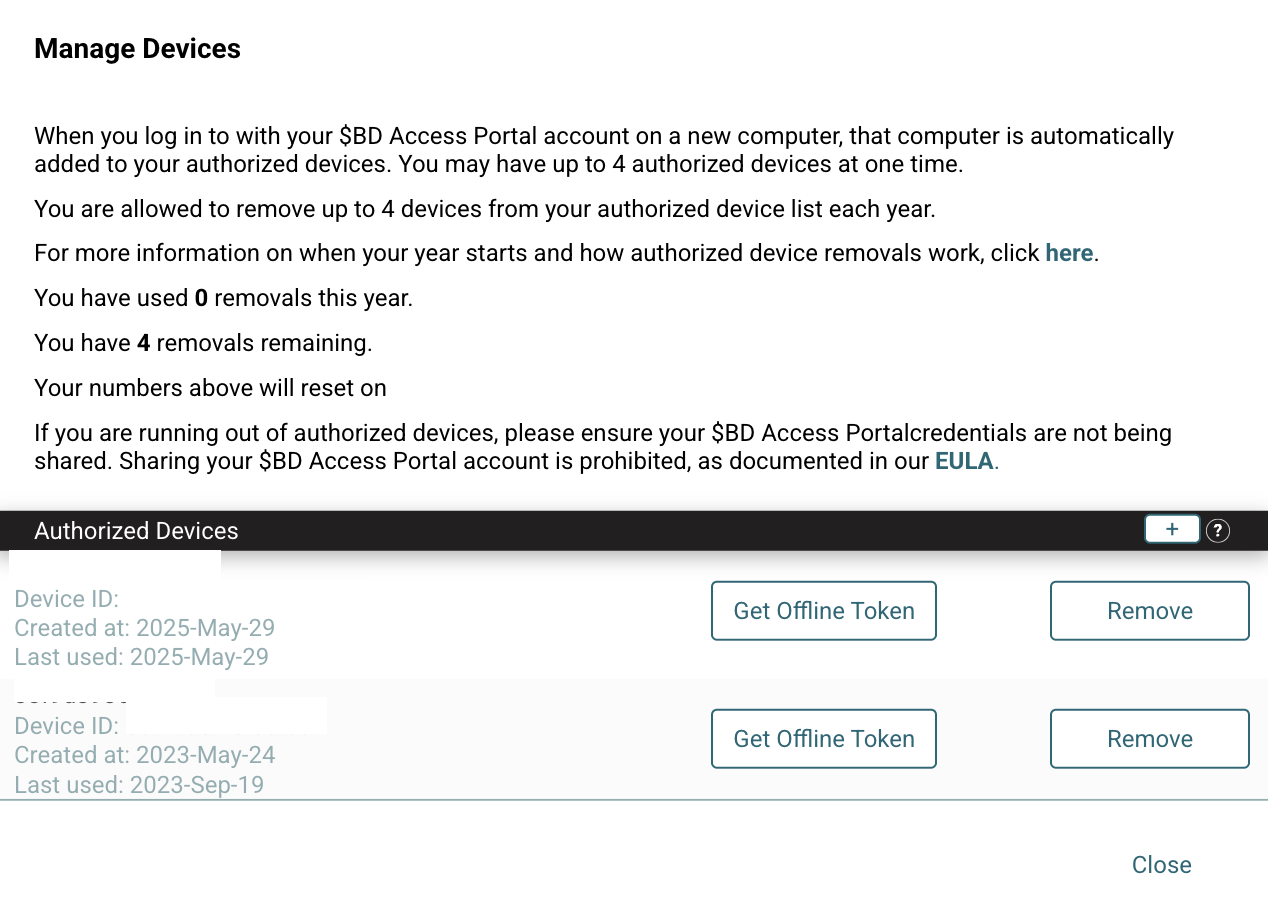
3) Import the Offline Token
On the BD Access Portal webpage there should now be a "Export Offline Token" button. Press that button and save the Extended Offline Token somewhere on your computer.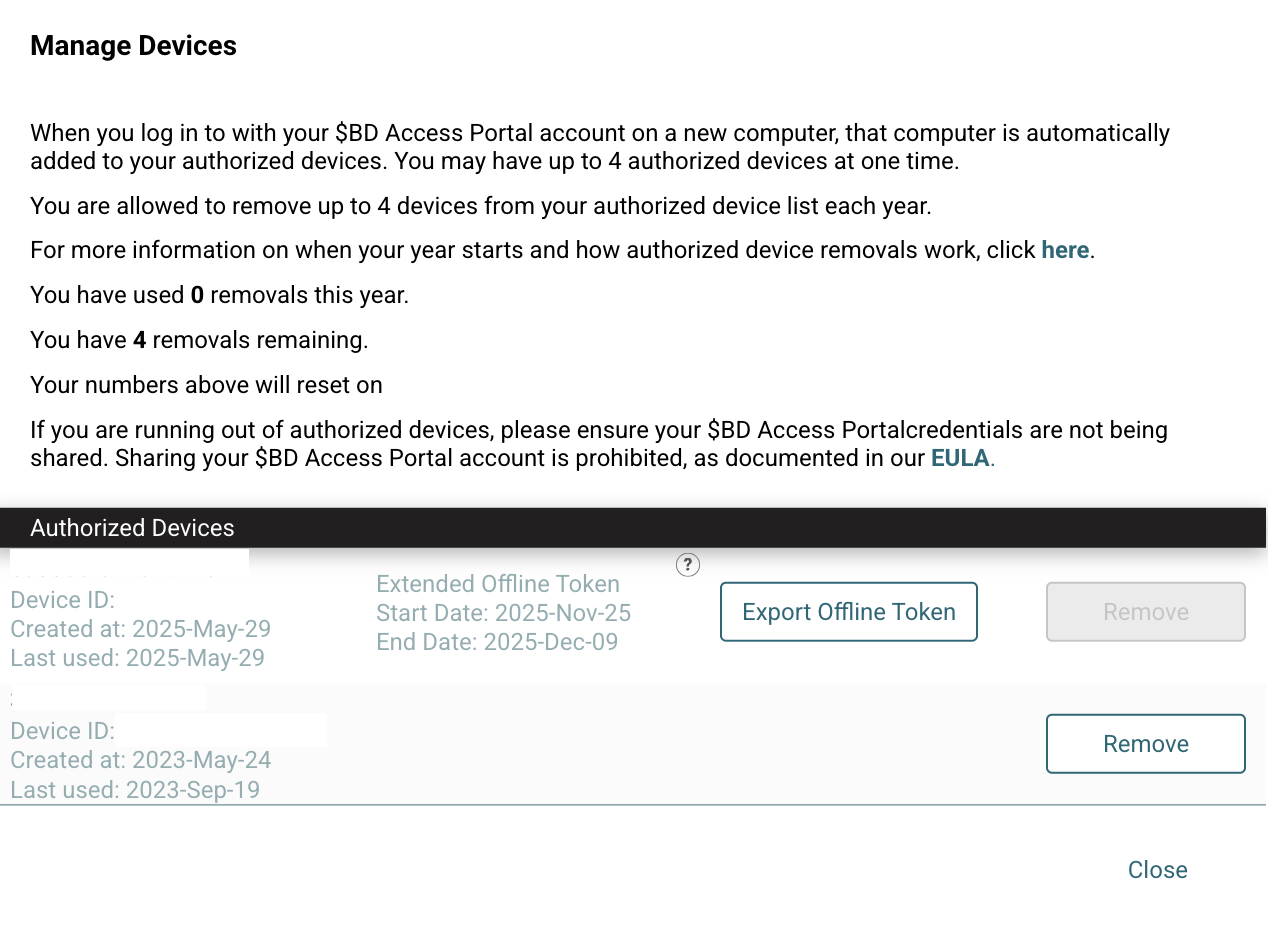
Open BD Access Portal and click on the three dots in the righthand corner to display the device identifier. Press the "Import Token" button and select the extended offline token that we just created on the computer. After selecting the Extended Offline Token a "Success" message should display. Return to the BD Access Portal login screen by clicking on the "x" icon in the top righthand corner. Login to the BD Access Portal using your email address and password. For the next 365 days you should now be able to login to the BD Access Portal even while the device is offline.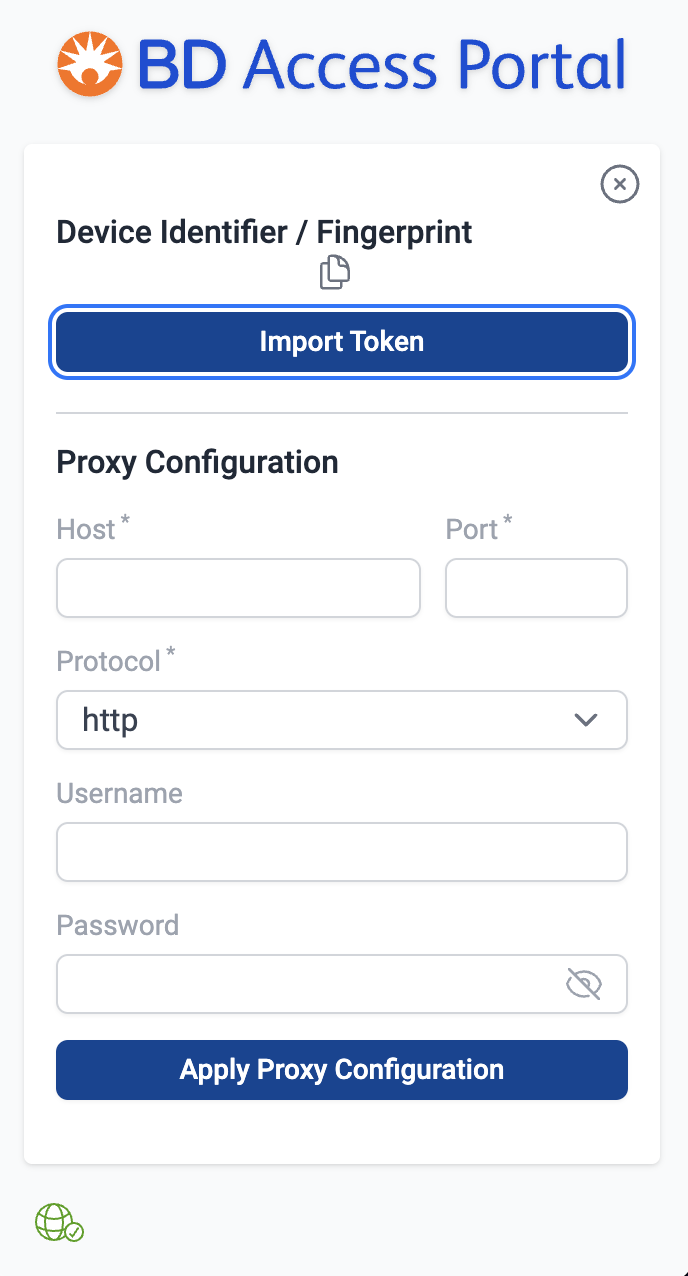
Additional considerations
- An extended offline token can not be cancelled once it is created. After creating an extended offline token the BD Access Portal account can not be used to login to the software on any device aside from the device that the token was created for. The portal account can be used on other devices once the extended offline token expires.