
The BD Access Portal website can be used to manage which devices the software license is registered for use with and can create offline tokens to license a single device.
The software license can only be used on up to four different devices. Typically, these devices are different computers that the software is being used on. A computer is automatically assigned to an authorized device slot and associated with your account the first time you sign into the software on that computer with your BD Access Portal account credentials (email address and password). That device is automatically associated with your BD Access Portal account and added to your list of authorized devices, if you have authorized device slots available.
If you have a purchased a FlowJo license, you will be able to login to both FlowJo version 10 and version 11 on up to 4 computers, one computer at a time. If you end up logging into FlowJo version 10 and version 11 on 4 computers, you will see 8 device slots, 4 with hardware addresses for version 10 and 4 with fingerprints for version 11.
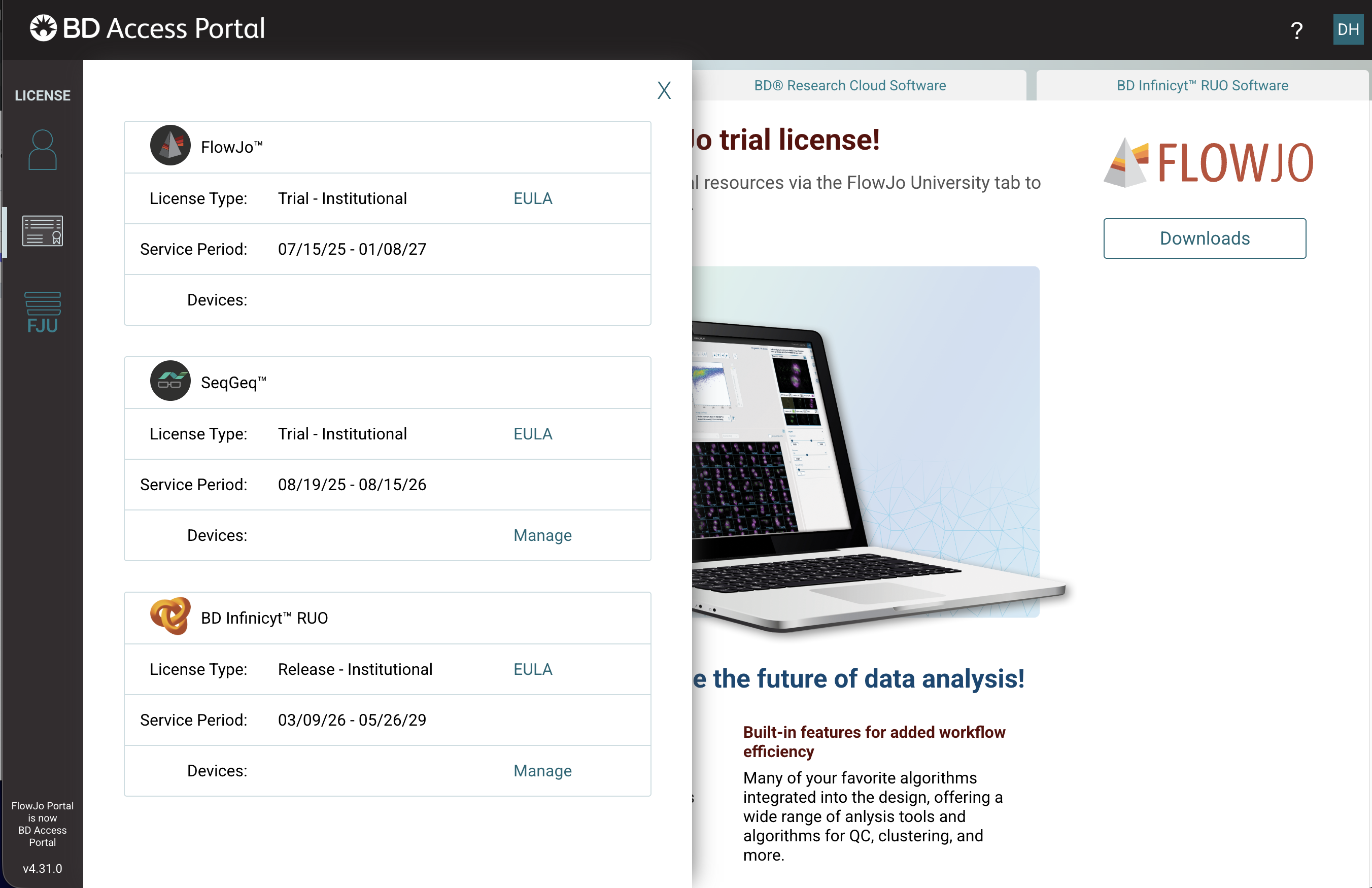
To manage the devices associated with your account, sign in to the BD Access Portal web browser and select License on the left menu bar. Then select Manage to manage what devices are authorized for each license registered with the BD Access Portal account.
This will list all of the authorized devices currently associated with your license:
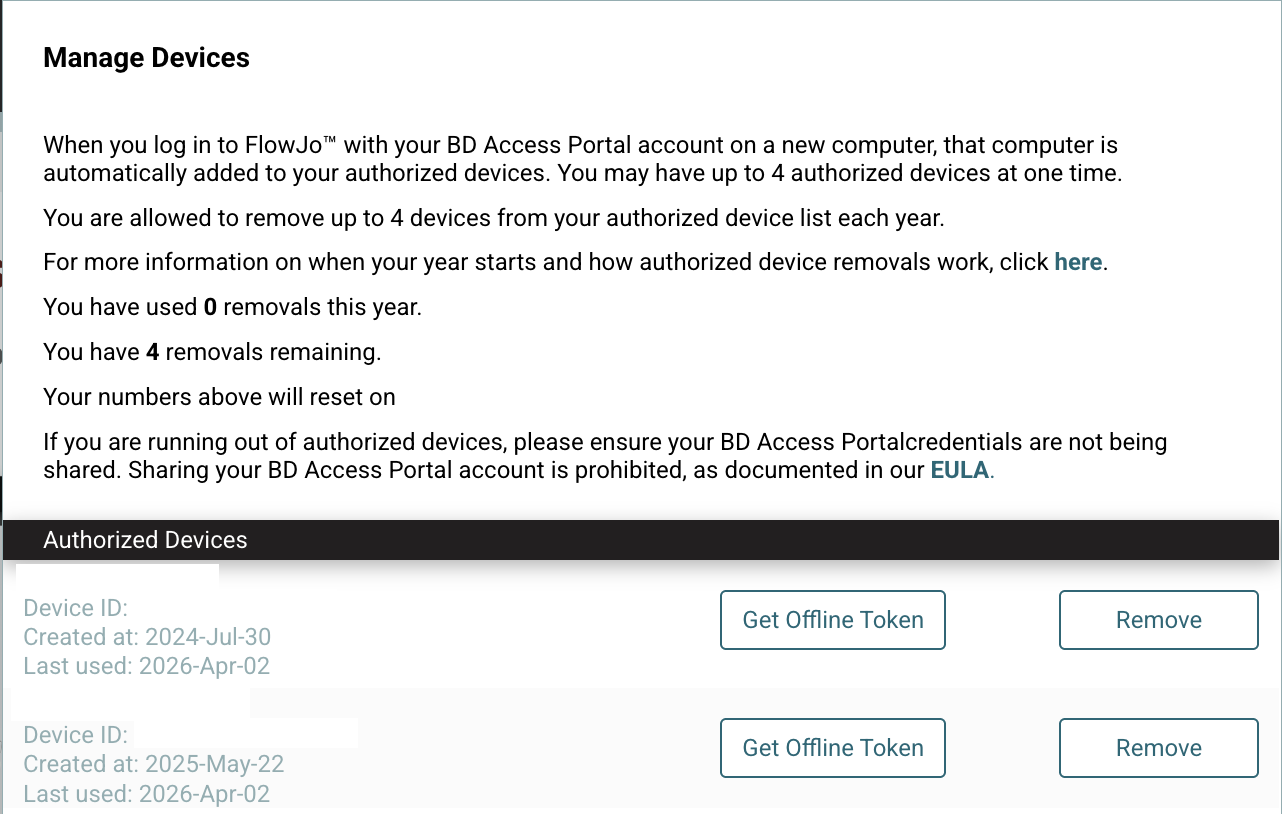
You can rename your Authorized Device to something that will help you locate your computer easier than your hardware address.

The manage devices section will also allow you to remove an authorized device from the list in order to replace it with a new one. To remove a device, press the "Remove" button next to the device ID you wish to remove. This Operation Can Only Be Performed 4 Times Per Year for Any Individual Account.
If you attempt to sign in to your software on more than 4 devices, you’ll get a notification prompting you to update your account’s authorized devices list (illustrated above). You can only remove a device 4 times per year.
- Group License Admins cannot add or remove devices for individual users.
- If you own an individual license and do not belong to a group based license, the device reset is based on your license start date +365 days and considers each new year.
- If you own a seat on a group license the device removal reset date is based on the month/day that you joined the group license (start date) + 365 days and considers each new year.
- For questions on setting up or utilizing BD Access Portal, reach out to our licensing experts at
- FlowJo™ Licenses = flowjoaccountservices@bd.com
- Infinicyt™ Licenses = Infinicyt@bd.com