
The Custom Fields tool allows administrators to collect additional user information, such as department or cost center, for reporting or internal billing purposes.
Do not collect sensitive information using this feature, as custom field data is not encrypted.
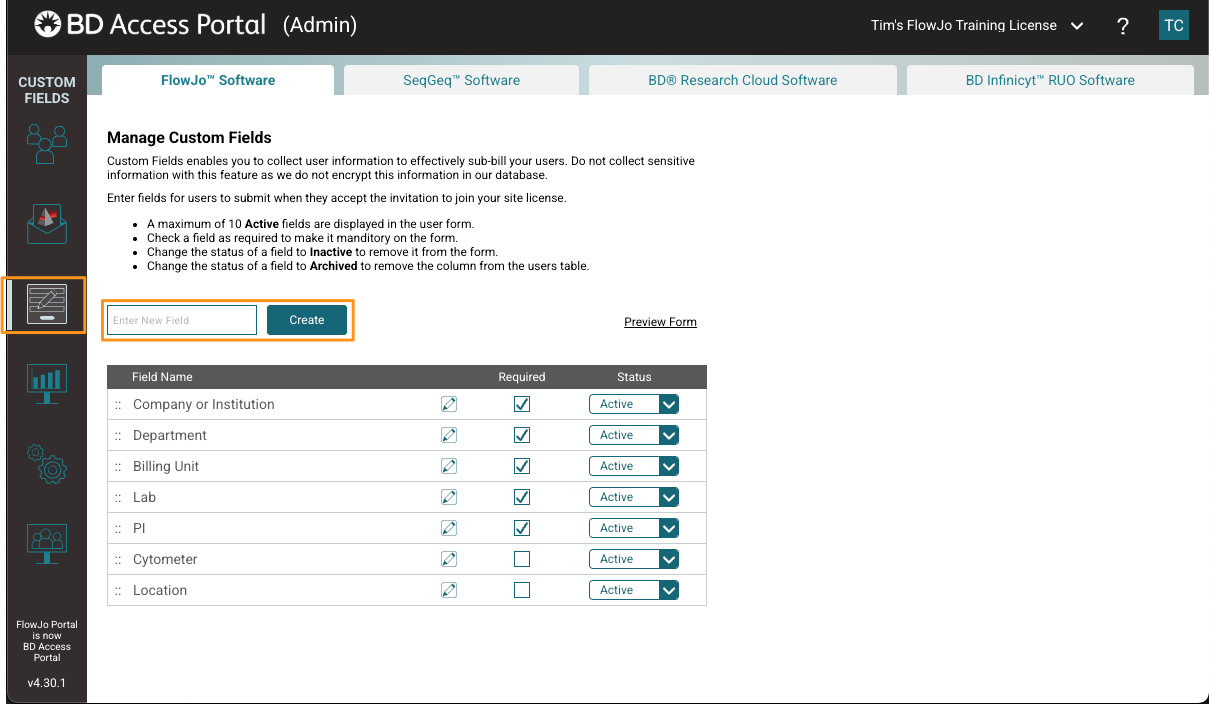
The tool is meant to gather data on the user for tracking a reporting purpose. The data from this tool will populate in the Active User’s page and can be exported as a CSV file by the admin. Admins can also modify/edit the user’s input from the active users’ page if the user input wrong information into the Custom Field’s form.
Please note:
- Fields can be edited by the admin post user submission via the Active User’s page by clicking on the Edit icon. Note: If an admin does not create Custom Fields, the form will not pop-up for the user.
- A maximum of 10 Active fields are displayed in the user form.
- Check a field as required to make it mandatory on the form.
- Change the status of a field to Inactive to remove it from the form.
- Change the status of a field to Archived to remove the column from the user’s table.
- You can preview your form after you have created it by clicking on the Preview Form button/link.