
The BD Access Portal application window has Network Diagnostic tools to help IT professionals troubleshoot connectivity through their network.
To access, click on the three dots icon, then select the Diagnostics tab.
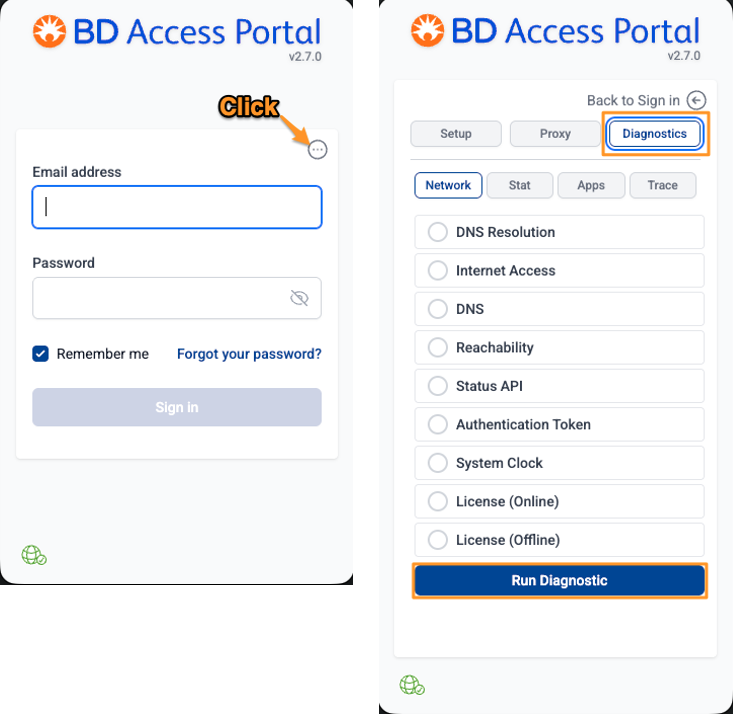
Running Diagnostic Checks:
Network Tab -
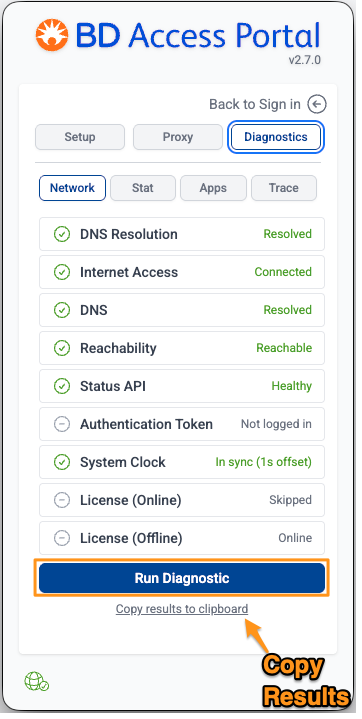
The Network tab runs a series of checks to verify your connection to the BD Access Portal service.
Click Run Diagnostics to start.
The checks run in order. If an early check fails, later checks that depend on it are automatically
skipped — this helps you focus on the root cause rather than a cascade of secondary failures.
What Each Check Does
1 Network Interface - Confirms your computer has an active network connection (WiFi orEthernet)
2 DNS Resolution - Confirms your computer can look up website addresses
3 Internet Access - Confirms you can reach the internet
4 Portal DNS - Confirms your computer can find the BD Access Portal server address
5 Portal Reachability - Confirms your computer can connect to the BD Access Portal server
6 Portal Status - Confirms the BD Access Portal service is online and responding
7 System Clock - Confirms your computer's clock is accurate (must be within 5 minutes of server time)
8 Auth Token - Confirms your login session is valid
9 Online Heartbeat - Confirms your product license session is active
10 Offline Heartbeat - Confirms you have a valid offline token stored (only checked when offline)
You can copy the full list to your clipboard for sharing with support.
Understanding Results
Each check shows one of these statuses:
• Pass (green) — Working correctly
• Fail (red) — A problem was detected; see the message for details
• Skipped (grey) — Could not run because a prerequisite check failed
Common Issues and What to Do
| Failing Check | Likely Cause | What to Try |
Network Interface | No network Connection | Check that WiFi is connected or your Ethernet cable is plugged in |
| DNS Resolution | DNS server unreachable | Restart your router, or contact your IT team about DNS settings |
Internet Access | Firewall blocking traffic | Check firewall or security software settings; contact IT if on a managed network |
Portal DNS | Portal domain blocked | Your network may be filtering the portal address; contact IT |
Portal Reachability | Port blocked | A firewall may be blocking the connection; contact IT |
Portal Status | Service temporarily unavailable | Wait a few minutes and try again; if persistent, contact BD Support |
System Clock | Computer clock is wrong | Sync your clock: Windows → Settings → Time & Language → Sync now; macOS → System Settings → Date & Time → enable "Set date and time automatically" |
Auth Token | Session expired | Sign out and sign back in |
Traceroute (Trace Tab)-
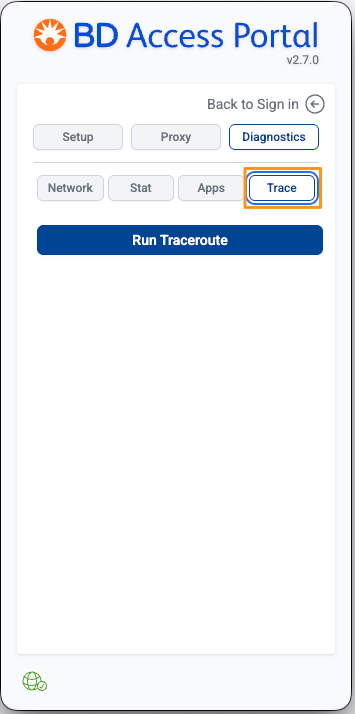
The Trace tab shows the network path between your computer and the BD Access Portal server, hop by hop. This is useful for identifying where a connection problem occurs along the route.
How to Use
1. Click Run to start the traceroute
2. Watch as each network hop appears in real time
3. Click Cancel (red) to stop early if needed
Reading the Results
Each row represents one step (hop) your data takes on the way to the server:
- Hop # — The step number (1 is closest to you, higher numbers are closer to the server)
- Hostname / IP — The name or address of the network device at that hop
- Time — How long it took to reach that hop (in milliseconds)
- * * * — The device at that hop did not respond (this is common and not always a problem)
Tip: If all hops after a certain point show * * *, the blockage is likely at or near that hop. Share this information with your IT team.
You can copy the full traceroute results to your clipboard for easy sharing.
Network Stats (Stat Tab) -
The Stat tab shows a snapshot of your current network environment. This information is helpful when working with IT support.
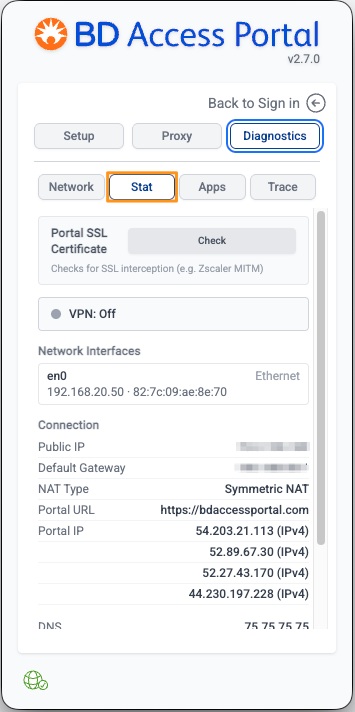
Information Displayed:
| Field | What It Shows |
| Network Interfaces | Your active network adapters (WiFi, Ethernet, VPN) and their IP addresses |
| DNS Servers | The DNS servers your computer is configured to use |
| Default Gateway | Your router's address |
| Public IP | Your internet-facing IP address |
| Portal URL | The BD Access Portal server you're configured to connect to |
| Portal IP | The server's resolved IP address (both IPv4 and IPv6 if available) |
| VPN Detected | Whether a VPN connection was found |
| NAT Type | Your network address translation type (Direct, Cone NAT, or Symmetric NAT) |
Portal SSL Certificate Check -
Click Check to verify that the connection to BD Access Portal is not being intercepted by a network device (such as a corporate proxy that inspects encrypted traffic).
| Result | Meaning |
| No interception detected | Your connection to the portal is direct and secure |
Possible SSL interception | device on your network is inspecting your encrypted traffic — this is common on managed corporate networks and may be intentional. If you're having connection issues, share this finding with your IT team |
You can copy all stats (including the SSL check result) to your clipboard.
Connected Apps (Apps Tab) -
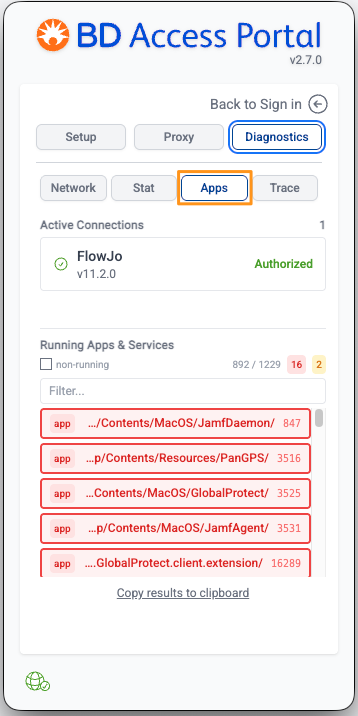
The Apps tab shows two things:
Active Connections (top section)
Lists the BD applications currently connected to BD Access Portal on your machine (for example, FlowJo 11), along with their connection status:
- Connected — App is connected but hasn't started a session yet
- Authorized — App has an active, licensed session
- Unauthorized — App connected but authentication was not successful
Running Apps & Services (bottom section)
Lists software running on your machine that may affect network connectivity. Security tools, VPN clients, and firewalls are highlighted:
• Red highlight — A known security/network tool is running and could potentially interfere with connectivity
• Amber highlight — A known security/network tool is installed but not currently running
Note: A highlighted application does not necessarily mean there is a problem — many of these tools are normal and expected on managed workstations. The highlighting simply helps you and your IT team identify potential sources of interference if you're experiencing issues.
Use the search box to filter the list by name. Toggle non-running to include stopped services.
You can copy the full list to your clipboard for sharing with support.
Tips for Working with Support
When contacting BD Support or your IT team about connectivity issues:
- Run a full diagnostic check and copy the results
- Run a traceroute and copy the results
- Copy the network stats (including the SSL check)
- Include all three when describing your issue
All panels have a copy to clipboard button that formats the information as plain text, ready to paste into an email or support ticket. Support Contacts page link.