
Create formulas in the Table Editor.
There are three types of columns you can create when you click the “Add Column” button in the Table Editor: Statistic, Keyword, and Formula (described below) columns.
In each case you can name the column, define it as a control value, choose whether or not to display its values in the finished table, and format the output according to criteria of your choice. Click here for more details.
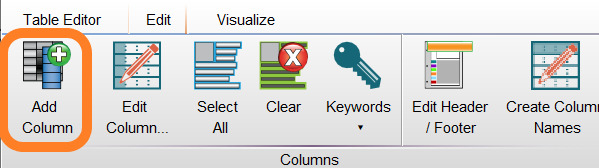
To create an algebraic formula In the Table Editor, first make sure you have added statistics as line items in the Table, then click the Edit tab in the ribbon. In the Columns band, click “Add Column”.
When the Column Information dialog appears, select the Formula tab:
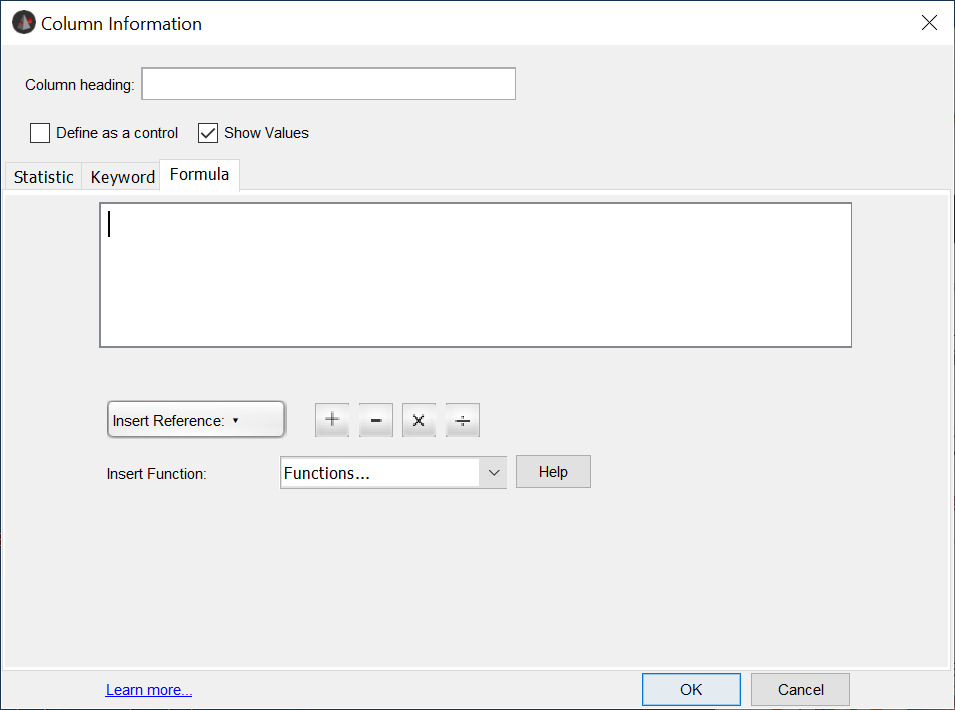
Here you can construct a formula that will appear as a column in your finished table. The calculation will be applied to each population through which the Table Editor iterates when it builds the table (as long as the statistics contributing to the equation are available).
To include statistics values that will be enumerated in other table columns in your formula, choose the Statistic Column from the "Insert Reference" drop down menu, which is a list of all other table columns already added to the table. Click on the column name you want to include in your formula.
The column name will be inserted in the formula window.
A table formula can be any operation on other columns in the table (only columns which do not depend on the current column can be chosen; i.e., you can’t have recursive relationships).
Next, insert a function, or operator (see the full list of all options at the bottom of this document):
See that the function has been appended to the name of your first inserted reference:
Finally, set a number or insert another column reference:
Click OK and your column definition will be added to the Table Editor. For help with other aspects of the “Add Column” tool, click here.
To change the characteristics of the column you have defined click on the “Edit Column” button in the Table Editor or double-click its row in the table.
Insert Reference – (Column references)
Insert Reference drop down list will contain all statistics that were previously added to the Table. Each statistic in the table will be named by default with the population hierarchy gating sequence and statistic being enumerated on that gated population. Choosing a statistic from the Insert Reference menu will add it to the Formula. Default table statistic names can be modified if desired. See this page for instructions on manually renaming table statistics and this page on auto-generating table statistic names for more information.
A column reference can also specify a specific row in the final spreadsheet. So a formula such as:
<Cell column=”MeanCD4″/>*2
will generate a new column in the table whose values are always twice the value in the per sample “MeanCD4” statistic. For each row in the output table, the formula computes the value of “MeanCD4” column in the current sample/row, and multiplies it by 2.
Square brackets allow you to specify a particular population; for example, the formula:
<Cell column=”MeanCD4″[1]/>*2
will generate a a result where all of the values are twice the first entry in the “MeanCD4” column.
Let’s assume the first row in the output table is the control sample; then, the formula:
<Cell column=”MeanCD4″/>/<Cell column=”MeanCD4″[1]/>*100
gives an output value which is the percent of the control sample (control sample is first sample in the group, and thus the table in the table).
Row references can also be “relative” to the current row. Thus, the formula:
<Cell column=”MeanCD4″/>-<Cell column=”MeanCD4″[-1]/>
will generate an output column where each cell represents the difference between the current and the previous row’s values for “MeanCD4”.
The formula:
<Cell column=”MeanCD4″/>-<Cell column=”MeanCD4″[+1]/>
is the same, but references the subsequent (next) row in the final table.
Insert Function
Expand the Insert Function drop-down menu, shown below, to add function notation to your formula. There are a wide variety of functions that can be used in FlowJo Table Editor formulas. Some of these functions operate on numbers, and some on text. FlowJo is reasonably clever at converting strings to numbers and vice versa if needed, but there are two functions that do this explicitly just in case: Char(x) converts numbers in text form to arabic numerals and Num(x) converts arabic numerals to their text form.
Here is a complete list of the math functions available:
1. +, -, /, * : addition, subtraction, division, & multiplication, respectively
2. %: modulus; e.g., 7 % 2 = 1
Numeric functions:
3. Abs(x): returns absolute value of x
4. ceil: rounds up to the next whole number
5. floor: rounds down to the next whole number
6. Neg(x): returns the negative of x (or “-x”)
7. min(x1, x2, …): returns the minimum value of the 2 or more parameters
8. max(x1, x2, …): returns the maximum value of the 2 or more parameters
9. round: returns the rounded value
Transcendental functions:
10. pow(x): “e” raised to the power of x
11. exp(x): “e” raised to the power of x
12. Ln(x): the base-e log of x
13. Log(x): the base-10 log of x
14. sqrt(x): the square root of x
Trigonometric functions:
15. acos: Arc cosine
16. asin: Arc sine
17. atan: Arc tangent
18. cos: Cosine
19. cosh: Hyperbolic cosine
20. sin: Sine
21. sinh: Hyperbolic sine
22. tan: Tangent
23. tanh: Hyperbolic tangent
Textual (String) functions:
- Note that string constants must be specified in single quotes. Any text that is not in single quotes is considered to be a variable or table column reference!
24. +: concatenate; ‘Abc’ + ‘def’ = ‘Abcdef’
25. Char(x): converts a number to a string; char(123) = ‘123’
26. Cont(a, b): returns 1 if a contains b
27. Del(a, b, c): delete from a starting at position b with length c: del(‘abcd’, 2, 2) returns ‘ad’
28. End(a, b): returns 1 if a ends with b, otherwise 0
29. find(x, y): finds the first position of substring y in string x; find(‘abce’, ‘c’) = 3
30. Ins(a, b, c): insert b into a at position c; ins(‘abcd’, ‘x’, 2) returns ‘axbcd’
31. Len: returns the length of the string in number of characters
32. Lowr(a): returns the lowercase equivalent of a
33. Max(x1, x2, …): returns the alphabetically first of the parameters
34. Min(x1, x2, …): returns the alphabetically last of the parameters
35. Num(x): converts a string to a number; num(‘123’) = 123
36. Rep(a, b, c): replaces the first instance of b in a with c: rep(‘ababab’, ‘a’, ‘c’) returns ‘cbabab’
37. Repall(a, b, c): replaces all instances of b in a with c; repall(‘ababab’,’a’, ‘c’) returns ‘cbcbcb’.
38. Strt(a, b): returns 1 if a starts with b, otherwise 0; Strt(‘abcd’, ‘ab’) = 1
39. Sub(x, a, b): substring of string x, starting at position a, of length b’ sub(‘abc’ 2, 1) = ‘b’
40. Trun(a, b): truncates a to a length of b characters; if b is less than zero, then delete the last ‘-b’ characters from a. Trun(‘abc’, -1) = ‘ab’
41. Uppr(a): returns the uppercase equivalent of a
42. Word(x, a, b): selects word number a from string x, using b as a delimiter; word(‘this is fun’, 2, ‘ ‘) returns “is”
Logical functions:
- All of these functions return a 1 if true or a 0 if false.
43. <, >,<=, >=, =, != : thus, the expression “a < b” returns 1 if a is less than b; otherwise 0
44. &&: and a & b: if both a and b are nonzero, than 1; otherwise 0
45. ||: or a || b: if either a or b are nonzero, than 1; otherwise 0
46. !: not !A: if A = 0, than 1; otherwise 0
Conditional functions:
47. Ifthen(a,b,c): if expression a evaluates to nonzero, then return expression b, otherwise expression c