
Embed keyword values in your table!
There are three types of columns you can create when you click the “Add Column” button in the Table Editor: Statistic, Keyword (explained below), and Formula columns. In each case you can name the column, define it as a control value, choose whether or not to display its values in the finished table, and format the output according to criteria of your choice. Click here for more details.
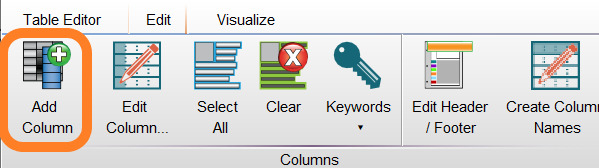
In the Table Editor, click the Edit tab. In the Columns band, click “Add Column”. When the Column Information dialog appears, select the Keyword tab:

Select a keyword from either list (parameter keywords are kept separately in the righthand column above) by scrolling and selecting the keyword of your choice. Use other tools in this dialog to name the column, define it as a control value if you wish, display/hide its values from the finished table, and format the output according to criteria of your choice. Click here for more details.
Click the OK button to add the Keyword column to the Table Editor. To change the characteristics of the column you have defined, click on the “Edit Column” button in the Table Editor or double click on its row in the table.
In the example below, we added concentration (keyword: TUBE NAME) to the Table Editor. In this titration experiment, we can then export the table into Excel; using the concentration values, we can create a graph of the saturation curve very quickly!

Here it is when we create the table:

Keywords in your tables can help annotate the data with Patient ID, treatment, concentration, or whatever else you may wish to include. Use the keywords to sort the data, annotate it, or create graphs.
FCS keywords are listed on this page.
More info on adding New Keyword to your workspace.
For more information about the Table Editor, please see:
Tabular Reports in the Table Editor
Heat Maps & Conditional Formatting
Statistics in the Table Editor