The FlowJo Workspace’s Ribbon is customizable to give you quick access to your frequently used tools.
The ribbon contains a set of tabs and bands, along with access buttons for preferences, ribbon configuration, language switching and accessing other areas of the program. The ribbons in the FlowJo workspace are explained in greater detail here.
Customizing the Ribbon Configuration
The locations of action bands on the ribbon can be customized. Click on the blue track and field day looking ribbon icon in the top right corner of the window. This will open a menu of all the bands that may be put into the ribbon within that area of the program. Drag and drop your preferred functions/features (bands) to the desired position inside a tab. Bands will expand in coordination with increases in the window width in a left to right order.
Selecting a band by its title and dragging it out of the ribbon will remove it from the ribbon.
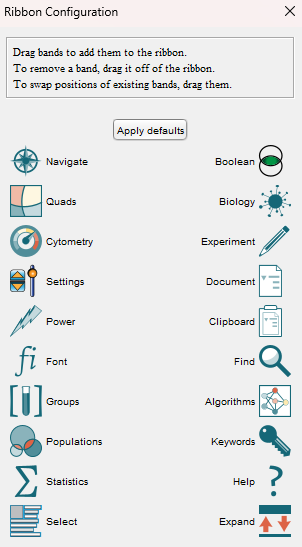
Note: Bands cannot be added to tabs while this Ribbon Configuration dialog overlaps with the workspace – To customize the bands within FlowJo’s workspace, make sure the ribbon configuration window is not covering the workspace (and that your workspace isn’t maximized).