
 is an open source programming environment used by scientists to create software tools for their research needs. Many of these tools have been shared and are open source, so they can be incorporated into your cytometric data analysis workflow.
R can be used with FlowJo v10 through the use of R-based Plugins, or users can run the desired tools directly in R, using a command line interface.
FlowJo Plugins
The FlowJo Exchange hosts plugins, additional tools that can be ‘plugged into’ FlowJo to expand its capabilities. Many of the plugins are R-based, requiring setup of the R environment locally for the plugin process to run and return results. R based plugins do not require you to know how to use R, but they do call to R in the background to execute an R script in the R enviornment, and so you must have R installed on your computer. R can be downloaded from http://www.r-project.org/.
Most R derived plugins require the bioconductor libraries, a suite of R tools developed by scientists working specifically with biological data.
To install the Bioconductor suite in your local R library after installing R, simply open R and type (or copy-paste):
if (!requireNamespace("BiocManager", quietly = TRUE))
    install.packages("BiocManager")
BiocManager::install()
You only need to do this one time. The downloaded package is saved locally, then called to if/when needed in an R script. Some R-dependent plugins will require the user to install the program itself in R (also just one time) before using. This is done through the command ‘install’. As an example, this is the code to install flowSOM, a popular clustering algorithm:
BiocManager::install("flowSOM")
However, most current R-based FlowJo v10 Plugins we distribute will attempt to auto-install the required packages the first time they are run. Manual installation of packages is only required if the auto-install fails to complete for some reason.
To use Plugins in FlowJo you will have to go into the diagnostics tab within the FlowJo plugins and include the R path and the path to whatever folder you have put downloaded plugins in. Screenshots below show a typical setup of the R installation path and Plugin folder locations on a Windows PC. More information on Plugin Setup can be found here.
Common initial R plugin setup issue on Windows PCs: If a Windows PC user does not have write permissions to their Program Files folder, then the auto-install of R based plugin dependencies will fail until/unless the user launches R and attempts to install an R package manually. Example install code for R package "png":
install.packages("png")When the install code above is entered manually into the R console, R will notify the user that their default R library is not writable and ask if the user would like to create a private R library in a writable location. When the user responds Y (Yes) to this prompt in the R console, then the package installation will proceed. Subsequent auto-installations of required packages for R based FlowJo plugins will occur without issue to the new user-specific R library in the writable location.
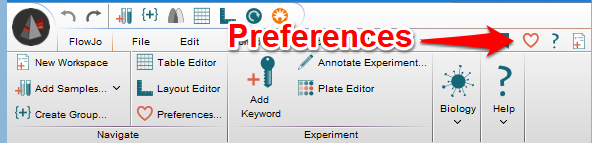
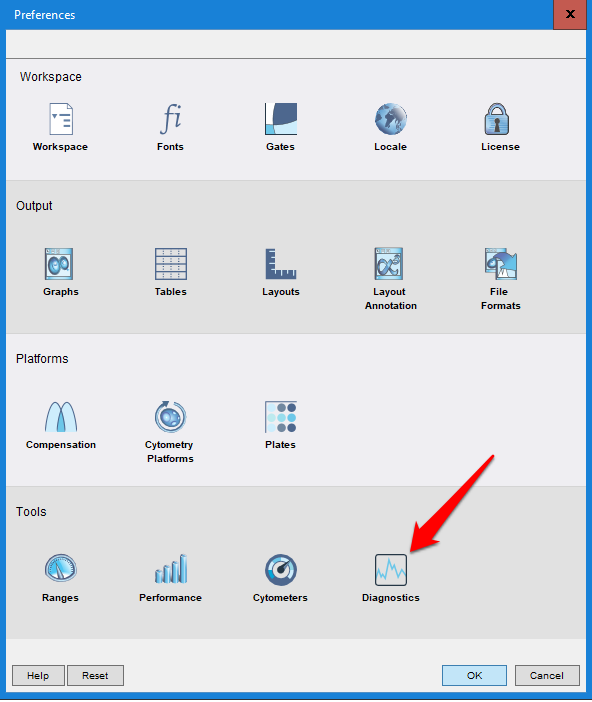
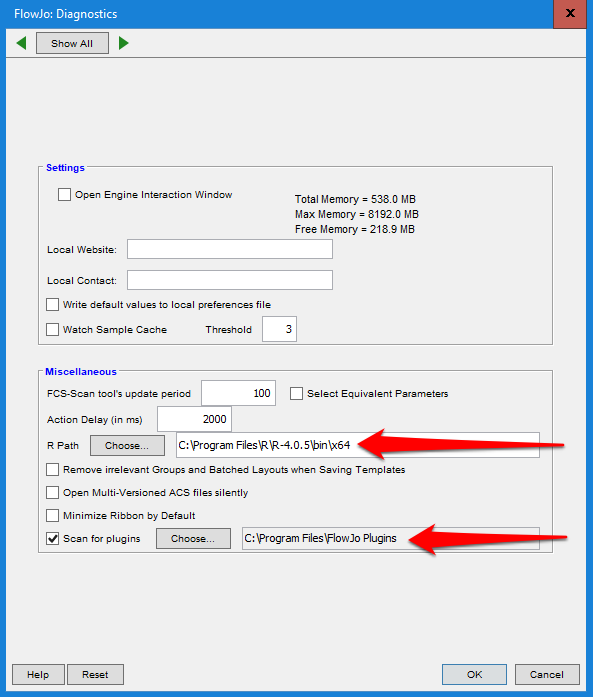
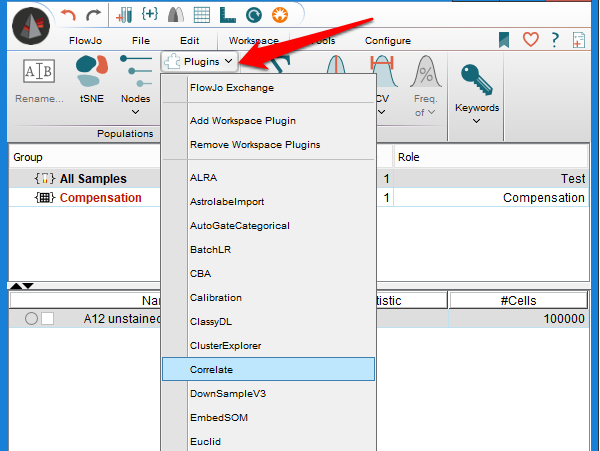
When that has been set up, every plugin you download and drop into the folder you selected will appear in the workspace plugin dropdown menu:
Run FlowJo and the desired R tools in a script from the command line
If your are facile with R, you can of course run the R algorithms directly in R and write the outputs as .csv files. Clustering outputs or other derived parameters can be appended to files in FlowJo via drag and drop onto the original file in FlowJo, or new FCS files can be written directly from R and loaded into FlowJo.